Kept as they are
- Your MCP servers
- Your agents and their prompts
- Keybinds, theme, default and small model
- Every other provider you use
- Project-level configuration
 Enpal AIGuidesAnleitungen
Enpal Chat
Enpal Chat is Enpal's own AI assistant for every employee, and the replacement for Langdock. It brings chat, agents, projects, automations, workflows, skills, connectors to your work tools, answers from Enpal's Confluence, document creation, creations and personal memory into one place. Open it at chat.enpal.ai.
Go to chat.enpal.ai and click Continue with Microsoft. Use your Enpal Microsoft account. That is it: no password to create, no app to install.
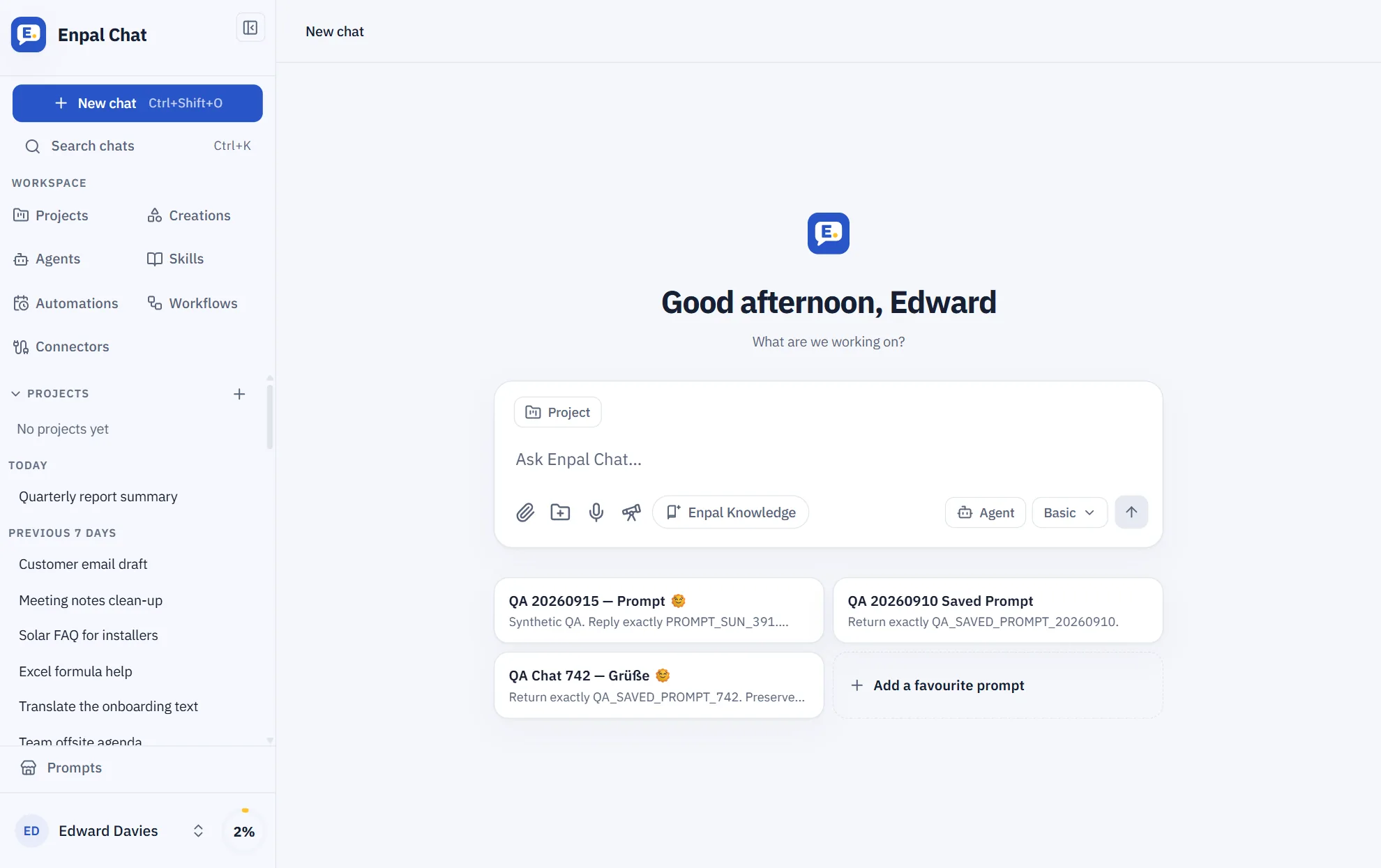
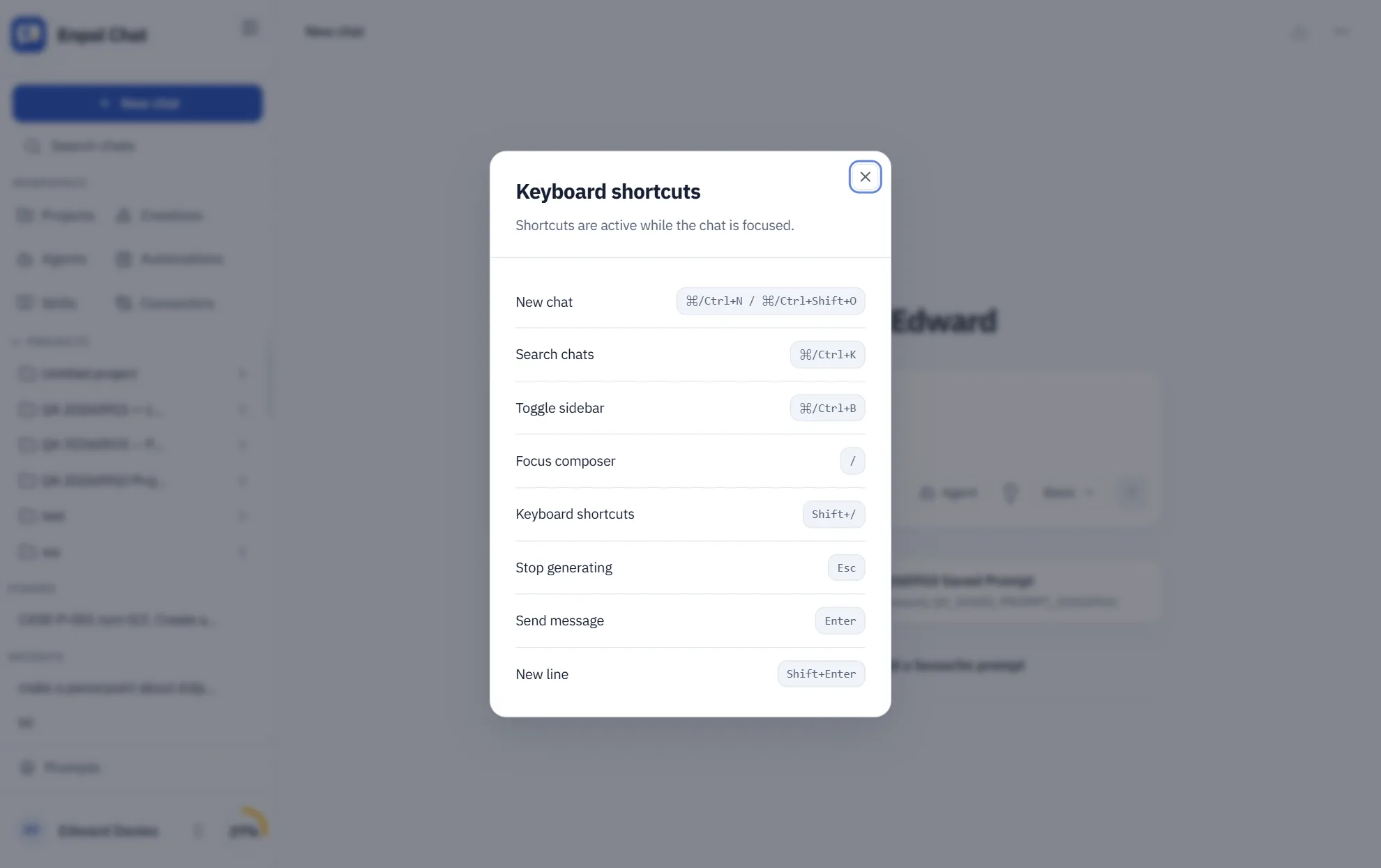
The home screen greets you with the message box and your favourite prompts (four starter prompts until you star your own), plus short tips the first time. The left sidebar holds everything else:
What you see depends on your team and permissions. If something in this guide is missing from your sidebar, it is not switched on for you yet.
Enpal Chat
Enpal Chat ist Enpals eigener KI-Assistent für alle Mitarbeitenden und der Nachfolger von Langdock. Chat, Agenten, Projekte, Automationen, Workflows, Skills, Konnektoren zu deinen Arbeitstools, Antworten aus Enpals Confluence, Dokumente, Creations und persönliche Erinnerungen an einem Ort. Du findest ihn unter chat.enpal.ai.
Öffne chat.enpal.ai und klicke auf Continue with Microsoft. Nutze dein Enpal-Microsoft-Konto. Das war es: kein neues Passwort, keine App.
Die Startseite zeigt das Eingabefeld und deine Lieblings-Prompts (vier Start-Prompts, bis du eigene mit Stern markierst), beim ersten Mal auch kurze Tipps. In der linken Seitenleiste liegt alles andere:
Was du siehst, hängt von deinem Team und deinen Rechten ab. Fehlt etwas aus dieser Anleitung in deiner Seitenleiste, ist es für dich noch nicht freigeschaltet.
Your Langdock chats do not move over, but the thing that makes the assistant feel like yours does: your memory. It takes two minutes.
Go to app.langdock.com/settings/account/preferences and scroll to the Memory section at the bottom of the page.
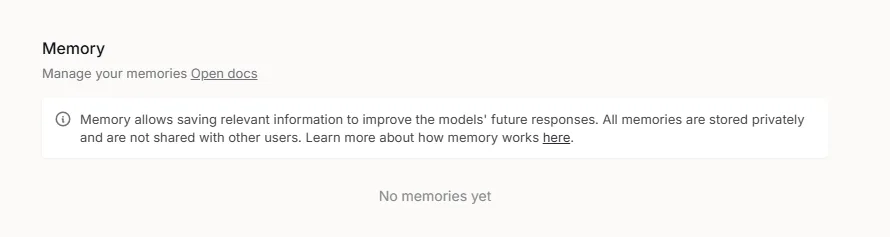
Select every memory listed there and copy it (Ctrl+C, or Cmd+C on a Mac). If the list says "No memories yet", there is nothing to bring over and you can skip this.
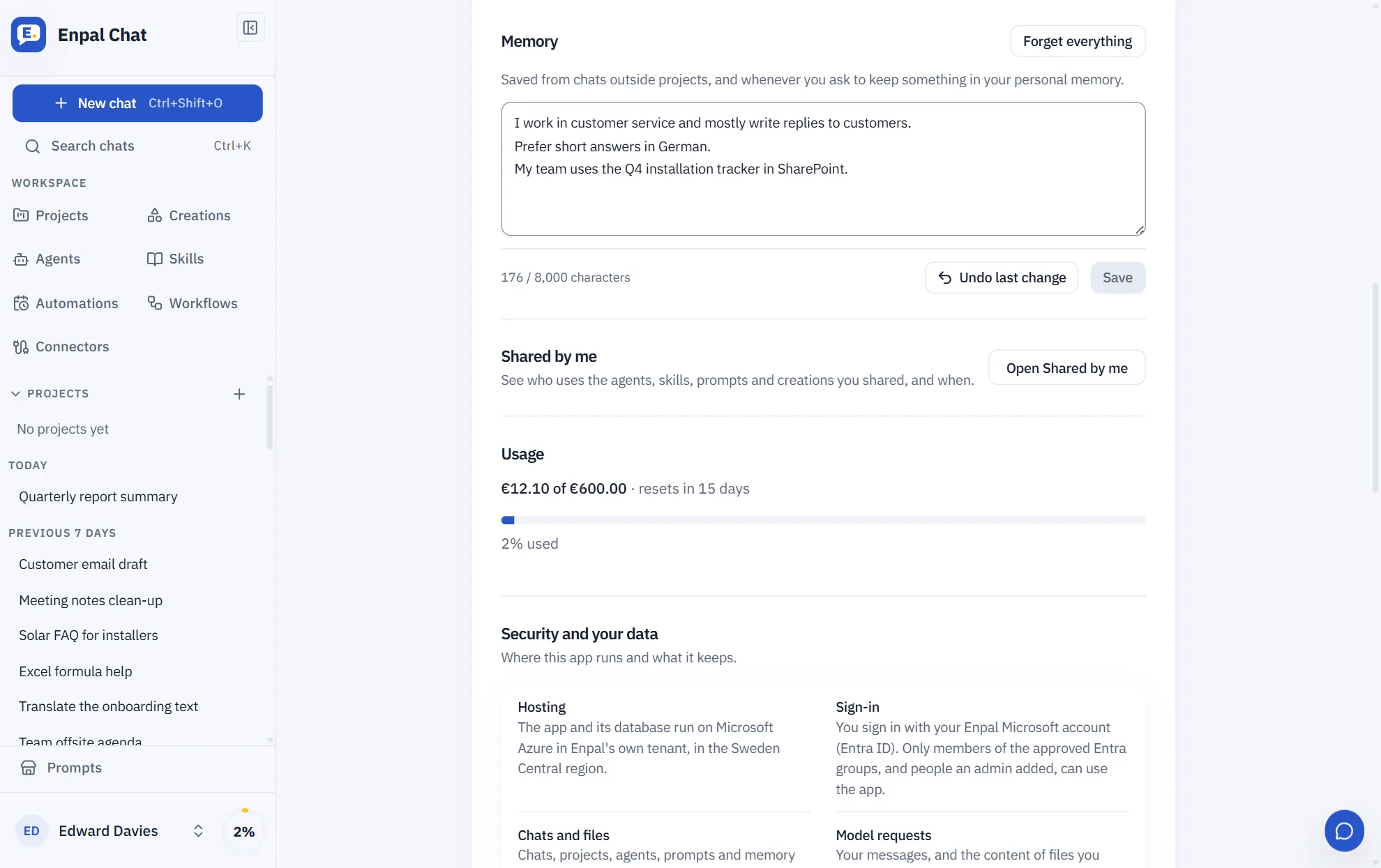
In Enpal Chat click your name at the bottom left, choose Account, paste what you copied into the Memory box and click Save. From your next chat on, the assistant knows it. See Memory for what else you can do there.
Microsoft 365 (Outlook, Teams, OneDrive and SharePoint) and Snowflake are now on the Connectors page for the people they have been set up for. If one you used in Langdock is still missing for you, ask for it through Feedback.
Deine Langdock-Chats ziehen nicht mit um, aber das, was den Assistenten zu deinem macht: deine Erinnerungen. Das dauert zwei Minuten.
Öffne app.langdock.com/settings/account/preferences und scrolle ganz nach unten zum Abschnitt Memory.
Markiere alle Einträge und kopiere sie (Strg+C, auf dem Mac Cmd+C). Steht dort "No memories yet", gibt es nichts zu übernehmen und du kannst diesen Schritt überspringen.
Klicke in Enpal Chat unten links auf deinen Namen, wähle Account, füge den kopierten Text in das Feld Memory ein und klicke auf Save. Ab deinem nächsten Chat kennt der Assistent ihn. Mehr dazu unter Erinnerungen.
Microsoft 365 (Outlook, Teams, OneDrive und SharePoint) und Snowflake stehen jetzt auf der Seite Connectors, für alle, für die sie eingerichtet sind. Fehlt dir noch einer aus Langdock, wünsch ihn dir über Feedback.
Enpal Chat is built in-house and changes every week, and your feedback decides what gets fixed and built next. Something broken, confusing or missing? Tell us. It goes straight to the team building Enpal Chat.
Two ways in, from anywhere in Enpal Chat. The page you were on, your browser and your language are attached automatically.
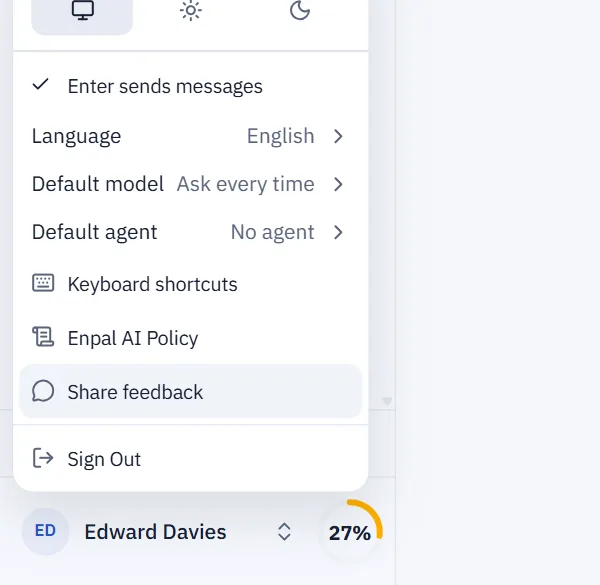

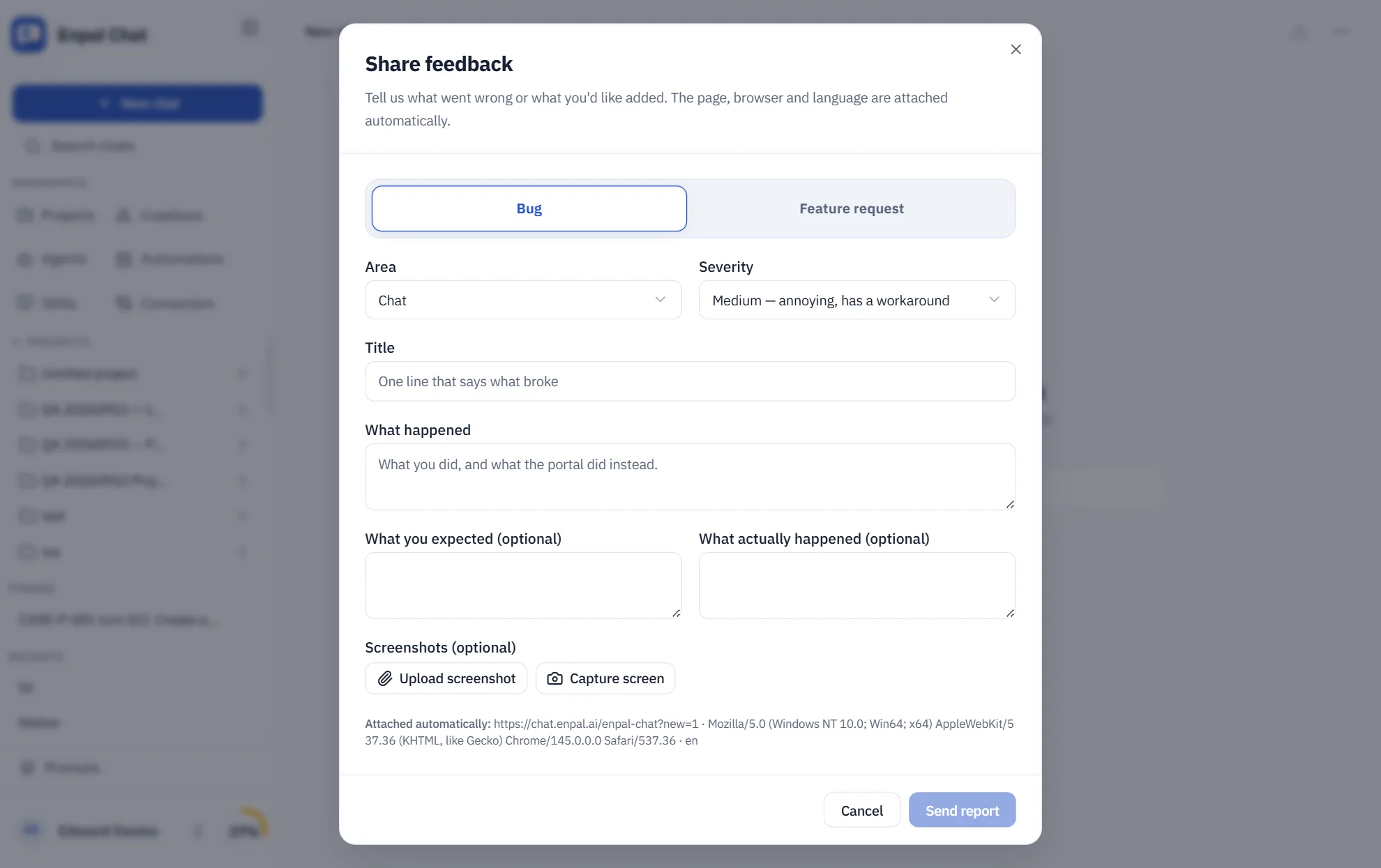
Pick the Area it is about (Chat, Agents, Skills, Prompts, Projects, Connectors, Automations, Account, Documents, Creations or Other), then give it a one-line Title.
Click your name, then View feedback. Every report you sent shows its status (for example Planned or Resolved), and you can reply to the team or Reopen it if the problem is back. The sidebar tells you when there is news.
You can also send feedback on a colleague's agent, skill, prompt or creation with Give feedback. It goes privately to the person who made it.
Enpal Chat wird intern gebaut und ändert sich jede Woche, und dein Feedback entscheidet, was als Nächstes behoben und gebaut wird. Etwas ist kaputt, verwirrend oder fehlt? Sag es uns. Es geht direkt an das Team, das Enpal Chat baut.
Zwei Wege, überall in Enpal Chat. Die Seite, auf der du warst, dein Browser und deine Sprache werden automatisch mitgeschickt.
Wähle den Bereich (Chat, Agenten, Skills, Prompts, Projekte, Verbindungen, Automatisierungen, Konto, Dokumente, Kreationen oder Sonstiges) und gib ihm einen einzeiligen Titel.
Klicke auf deinen Namen, dann auf View feedback. Jede Meldung zeigt ihren Status (zum Beispiel Planned oder Resolved). Du kannst dem Team antworten oder sie mit Reopen wieder öffnen, wenn das Problem zurück ist. Die Seitenleiste zeigt dir, wenn es Neuigkeiten gibt.
Zu einem Agenten, Skill, Prompt oder einer Creation von Kolleginnen und Kollegen kannst du mit Give feedback ebenfalls Feedback geben. Es geht privat an die Person, die es gebaut hat.
Enpal Chat runs on your personal Enpal AI Gateway budget: a monthly limit in euros for your AI use. It is the same budget OpenCode uses. Chats, research mode, Enpal Knowledge, helpers, automations and workflows all count towards it. It resets on the 1st of every month (UTC).
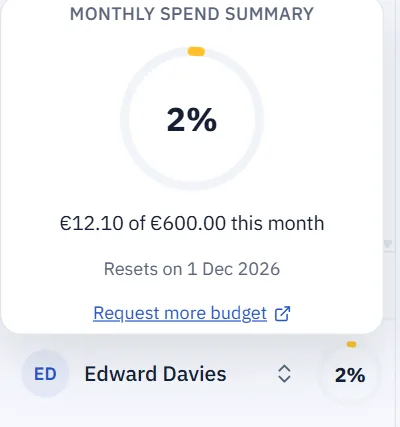
Click the ring next to your name, then Request more budget. It opens My requests in the Enpal AI Gateway portal in a new tab (ai-gateway-portal.enpal.io). Sign in with your Microsoft account if asked, then click New request +.

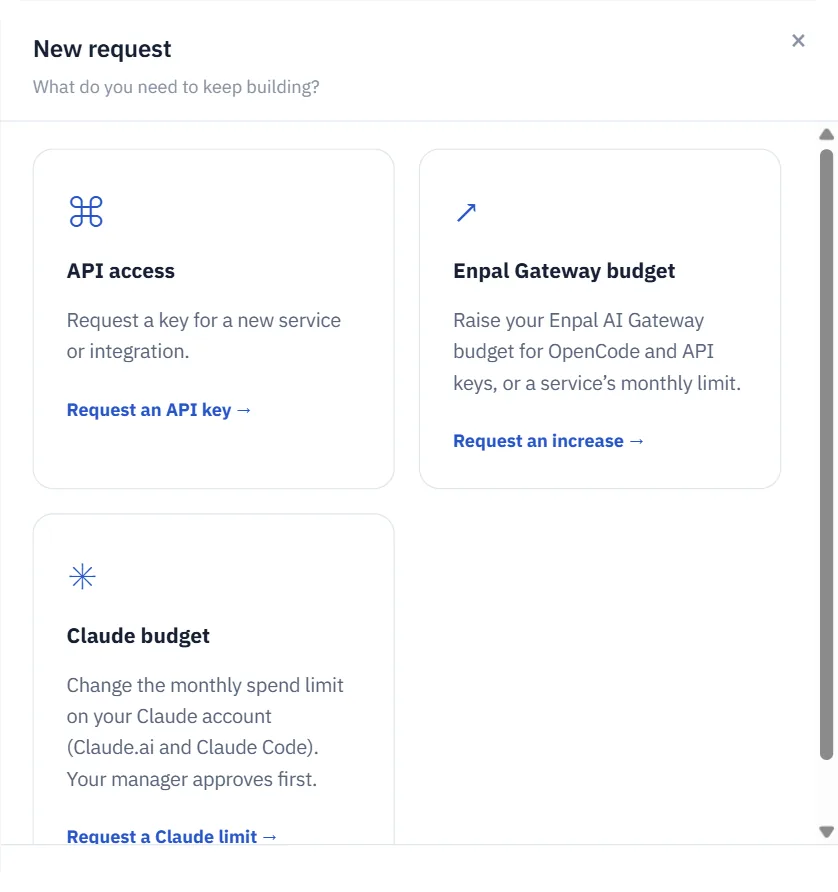
Pick Enpal Gateway budget, Request an increase. This is the budget Enpal Chat uses. Claude budget is a different one, for Claude.ai and Claude Code (see Changing your Claude budget).
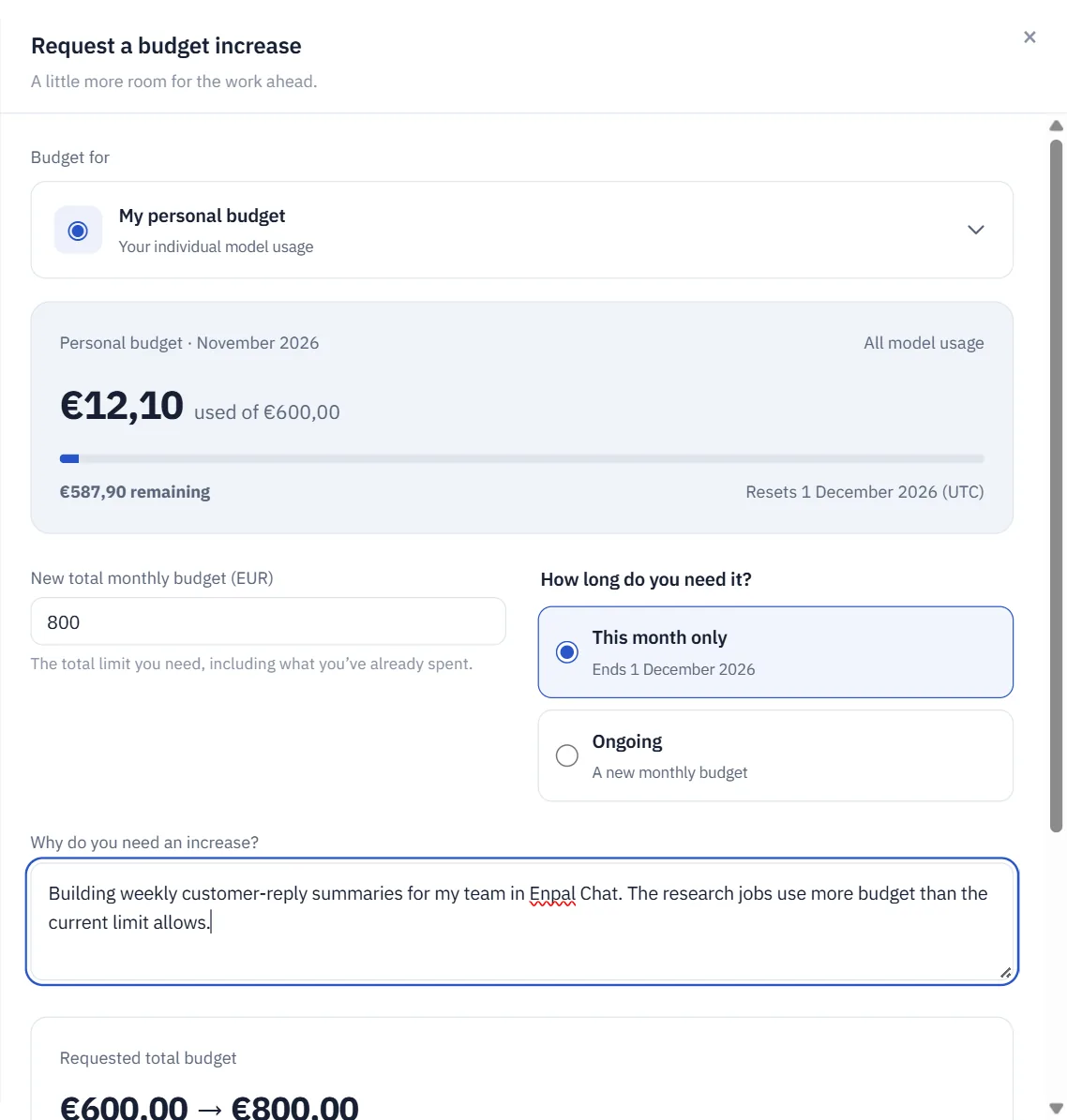
Check the summary (your current limit, the new one, and until when). If the form shows Cost center approval, ask your cost centre owner first and tick the box only once they have agreed: the request cannot be sent without it. Then click Submit request.
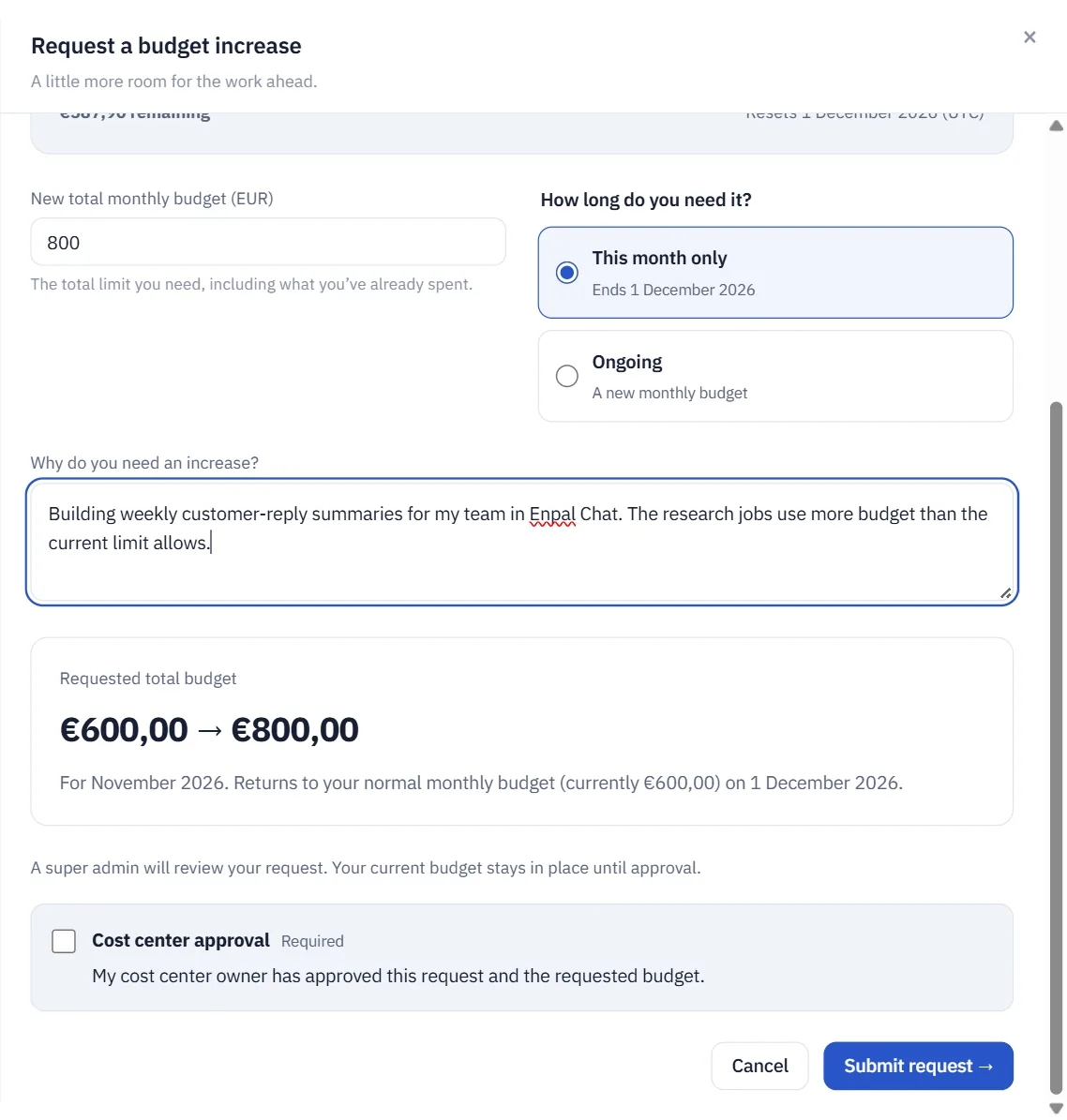
Enpal Chat läuft über dein persönliches Enpal-AI-Gateway-Budget: ein monatliches Limit in Euro für deine KI-Nutzung. Es ist dasselbe Budget, das auch OpenCode nutzt. Chats, Recherchemodus, Enpal Knowledge, Helfer, Automationen und Workflows zählen alle dazu. Es wird am 1. jedes Monats zurückgesetzt (UTC).
Klicke auf den Ring neben deinem Namen, dann auf Request more budget. Das öffnet My requests im Enpal AI Gateway Portal in einem neuen Tab (ai-gateway-portal.enpal.io). Melde dich bei Bedarf mit deinem Microsoft-Konto an und klicke auf New request +.
Wähle Enpal Gateway budget, Request an increase. Das ist das Budget, das Enpal Chat nutzt. Claude budget ist ein anderes, für Claude.ai und Claude Code (siehe Claude-Budget ändern).
Prüfe die Zusammenfassung (dein aktuelles Limit, das neue und bis wann). Zeigt das Formular Cost center approval, frag zuerst die verantwortliche Person deiner Kostenstelle und setze den Haken erst, wenn sie zugestimmt hat: ohne ihn lässt sich die Anfrage nicht senden. Dann klicke auf Submit request.
Click your name at the bottom of the sidebar to open the settings menu.
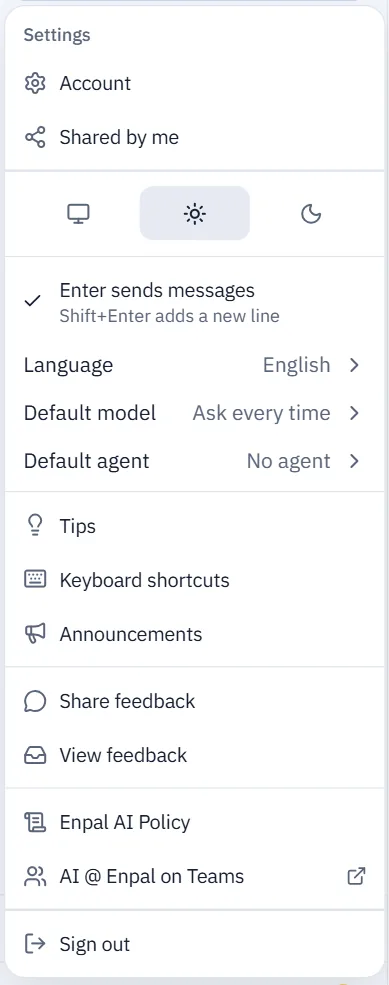
Choose Account in that menu for your Account page:
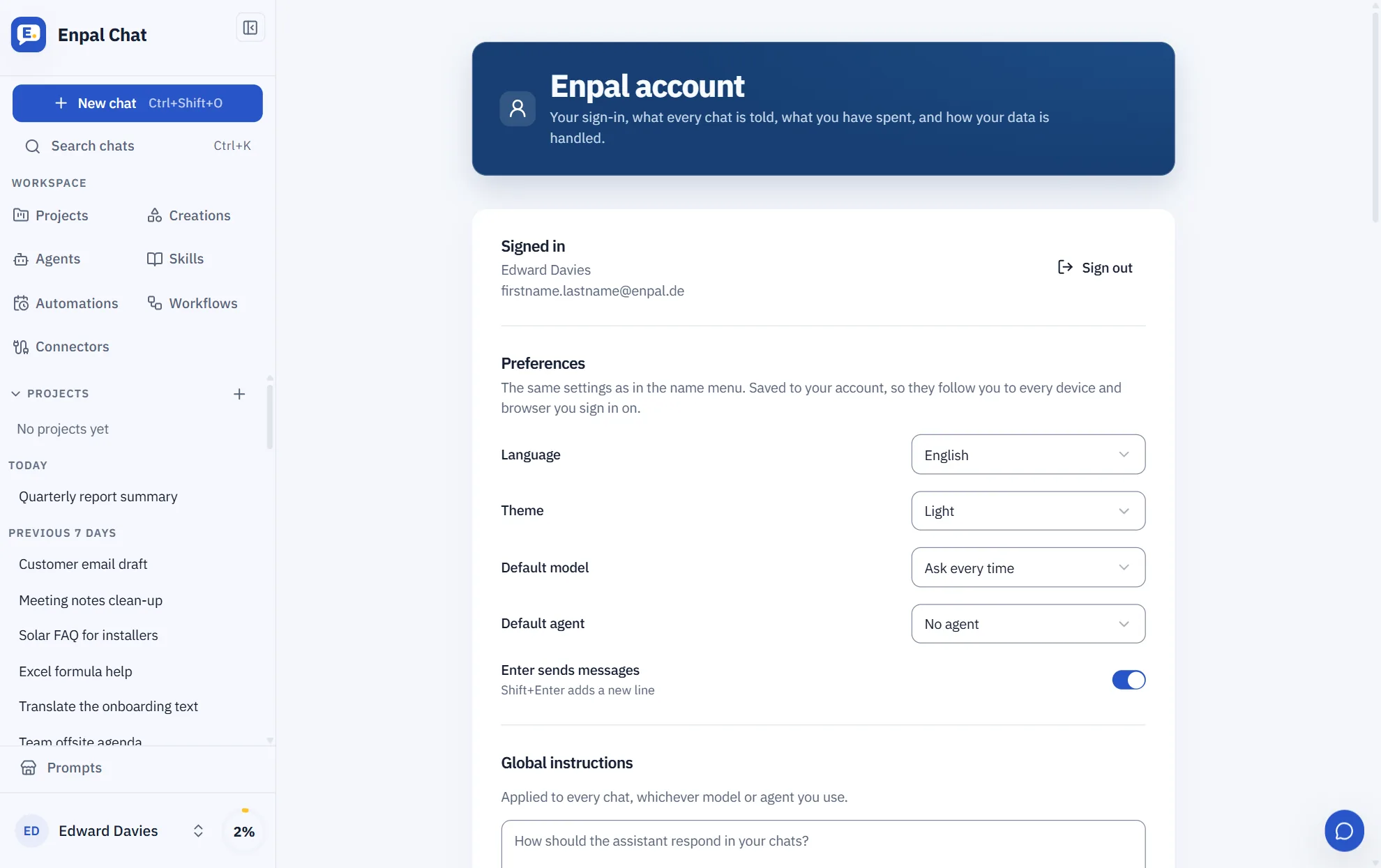
Klicke unten in der Seitenleiste auf deinen Namen, um das Einstellungsmenü zu öffnen.
Wähle in diesem Menü Account für deine Account-Seite:
Memory holds lasting facts and preferences about you, like your role or how you like answers written, so you never have to repeat them. Your personal memory is yours: nobody else sees it.
Erinnerungen enthalten dauerhafte Fakten und Vorlieben über dich, etwa deine Rolle oder wie du Antworten magst, damit du sie nie wiederholen musst. Dein persönliches Gedächtnis gehört dir: niemand sonst sieht es.
Ask anything. Type a question, paste a screenshot, attach files or dictate with the microphone.
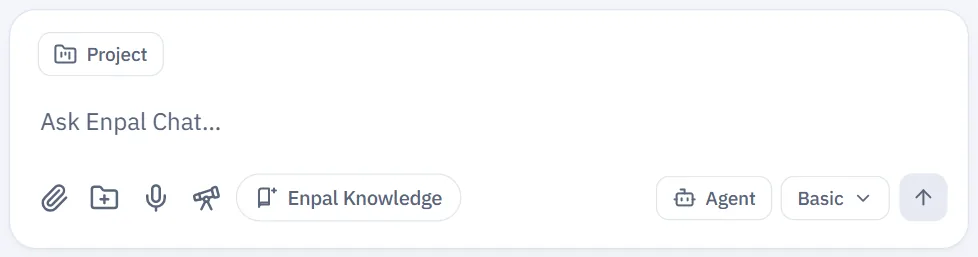
Frag alles. Tippe eine Frage, füge einen Screenshot ein, hänge Dateien an oder diktiere mit dem Mikrofon.
Pick the model from the picker at the right of the message box. Reasoning thinks longer and is best for analysis, planning and tricky questions. Basic is faster for everyday writing and quick answers. Badges show what each can do (read images, read files, create documents) and how much it can take in at once. An agent can fix its own model.
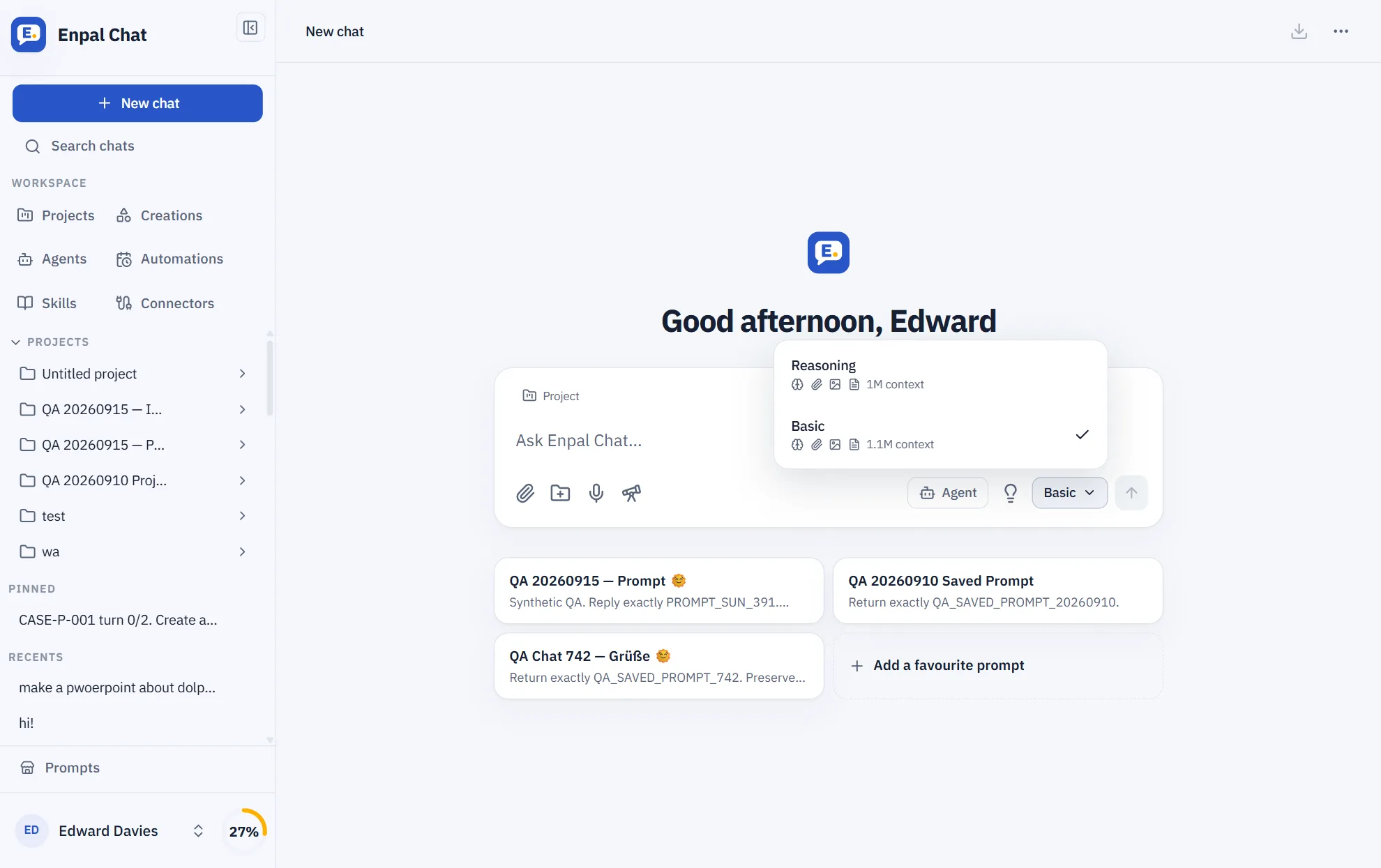
Research mode (the telescope button in the message box) makes a turn dig deeper: several web searches, reading the most promising pages and comparing sources, with links to where each fact came from. Use it for anything current or anything you want sourced.
Das Modell wählst du rechts im Eingabefeld. Reasoning denkt länger nach und ist am besten für Analysen, Planung und knifflige Fragen. Basic ist schneller für alltägliche Texte und kurze Antworten. Abzeichen zeigen, was jedes kann (Bilder lesen, Dateien lesen, Dokumente erstellen) und wie viel es auf einmal aufnehmen kann. Ein Agent kann sein eigenes Modell festlegen.
Der Recherchemodus (der Teleskop-Button im Eingabefeld) lässt eine Antwort tiefer graben: mehrere Websuchen, die besten Seiten lesen und Quellen vergleichen, mit Links zu jeder Quelle. Nutze ihn für alles Aktuelle oder alles, was belegt sein soll.
Enpal Knowledge answers questions from Enpal's own Confluence: how our systems, services and processes work, with numbered sources you can click. There is nothing to connect or sign in to.
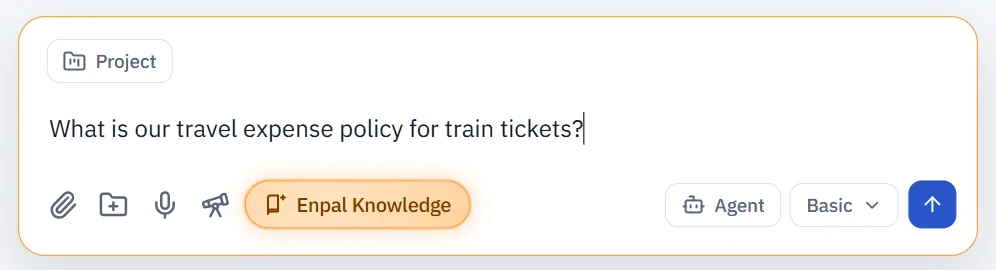
Do not see the button? Enpal Knowledge is being switched on for people step by step. Until it is on for you, the button is not shown.
Enpal Knowledge beantwortet Fragen aus Enpals eigenem Confluence: wie unsere Systeme, Services und Prozesse funktionieren, mit nummerierten Quellen zum Anklicken. Es gibt nichts zu verbinden oder anzumelden.
Du siehst den Button nicht? Enpal Knowledge wird Schritt für Schritt freigeschaltet. Bis es für dich an ist, wird der Button nicht angezeigt.
Ask for a file and you get one: Word, PowerPoint, Excel, PDF, CSV, Markdown or text, as a card in the chat you can open and download. Just say "make me a Word document of this" or "turn this into a 5-slide deck".
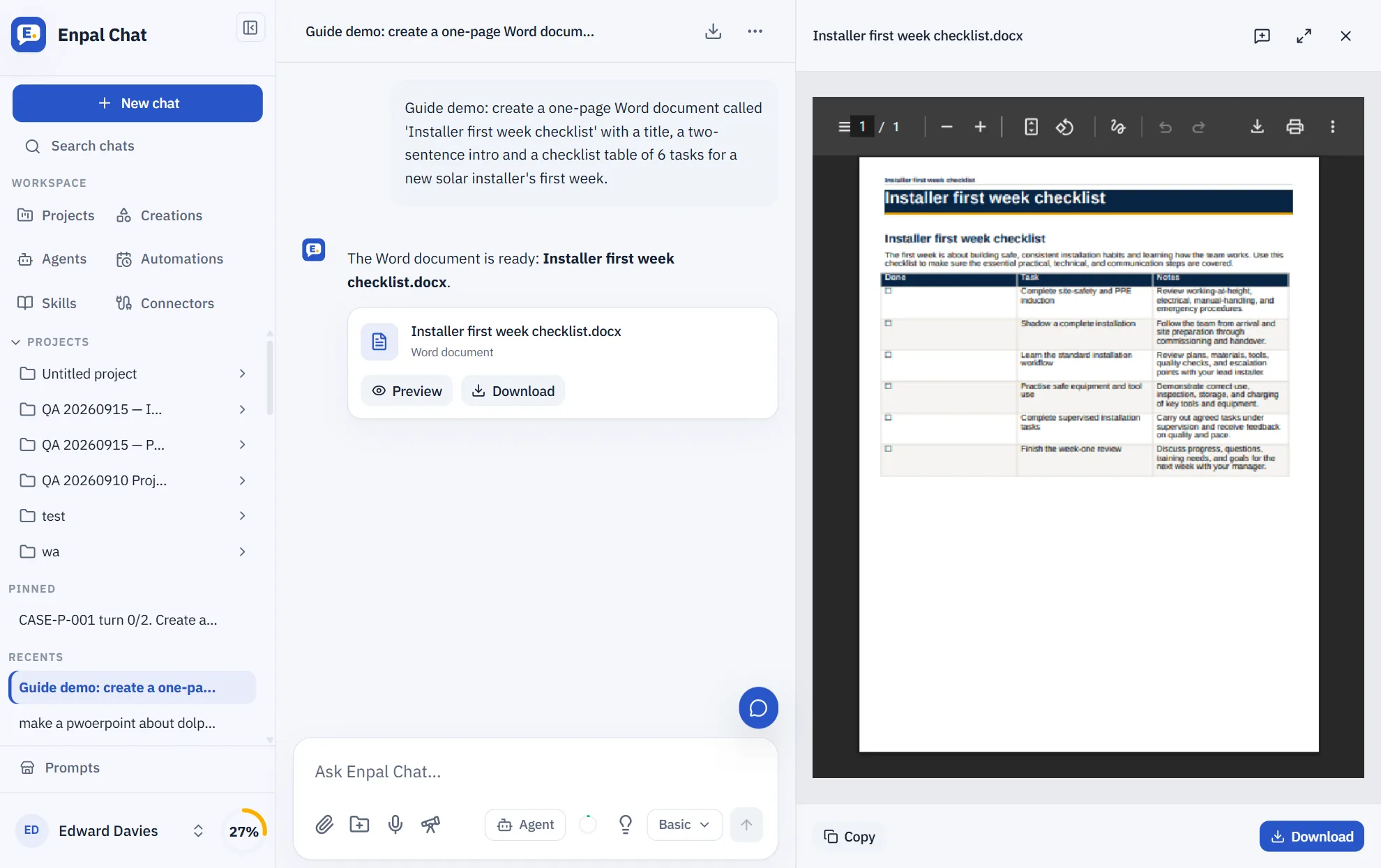
Ask for a new deck, Word document, PDF or spreadsheet and the assistant first asks How should I make it?
Said it already ("use the Enpal template", or attached a file to build from)? Then it skips the question. To reuse the look of a deck you have, upload it and say "make one like this about…".
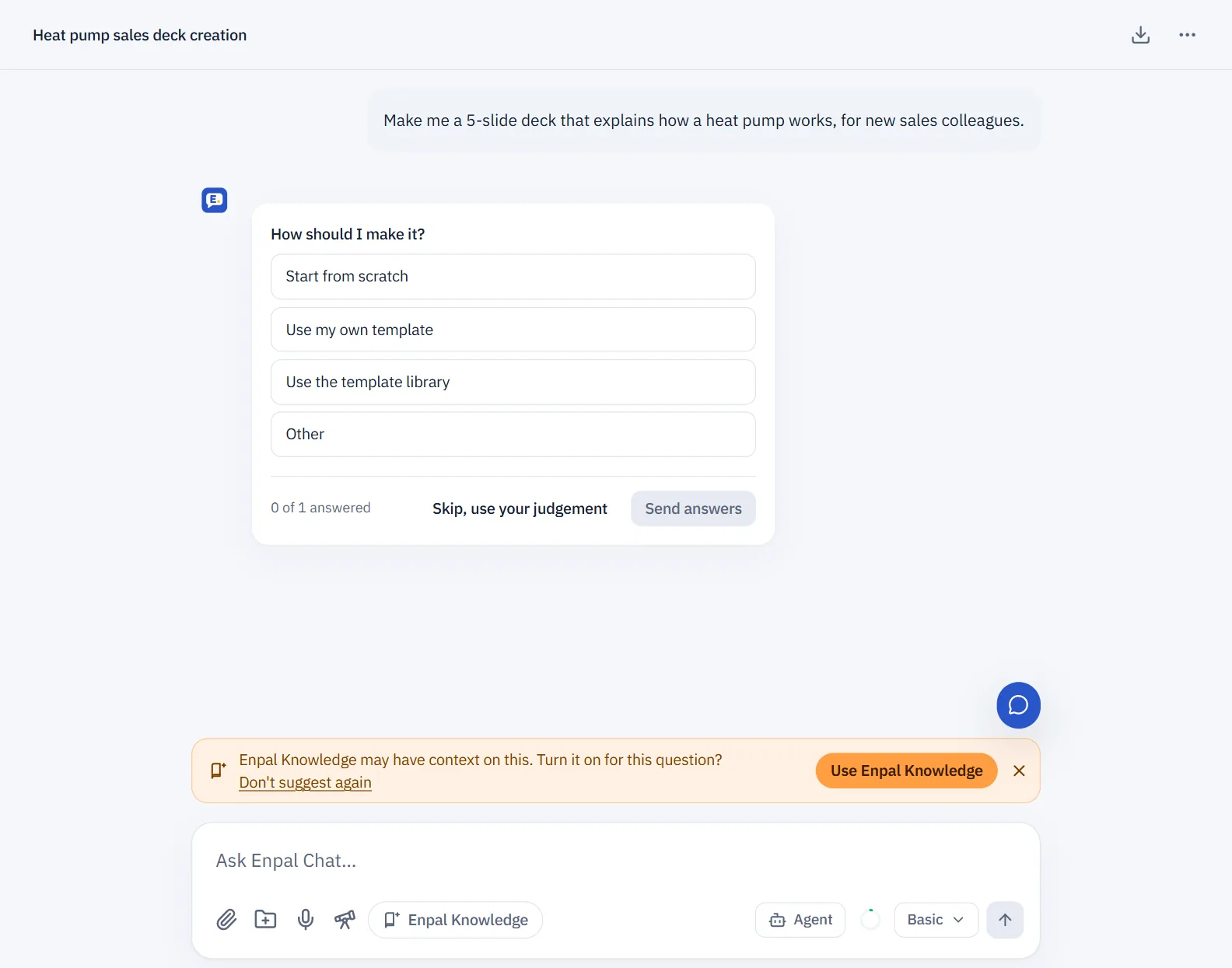
Bitte um eine Datei und du bekommst eine: Word, PowerPoint, Excel, PDF, CSV, Markdown oder Text, als Karte im Chat zum Öffnen und Herunterladen. Sag einfach "mach mir daraus ein Word-Dokument" oder "mach daraus ein Deck mit 5 Folien".
Bittest du um ein neues Deck, Word-Dokument, PDF oder eine Tabelle, fragt der Assistent zuerst How should I make it?
Schon gesagt ("nimm die Enpal-Vorlage") oder eine Datei als Vorlage angehängt? Dann fällt die Frage weg. Um den Look eines vorhandenen Decks zu übernehmen, lade es hoch und sag "mach so eins über…".
Prompts are text you send often, saved so you never retype it. Open Prompts at the bottom of the sidebar to add your own and browse the ones colleagues have shared.
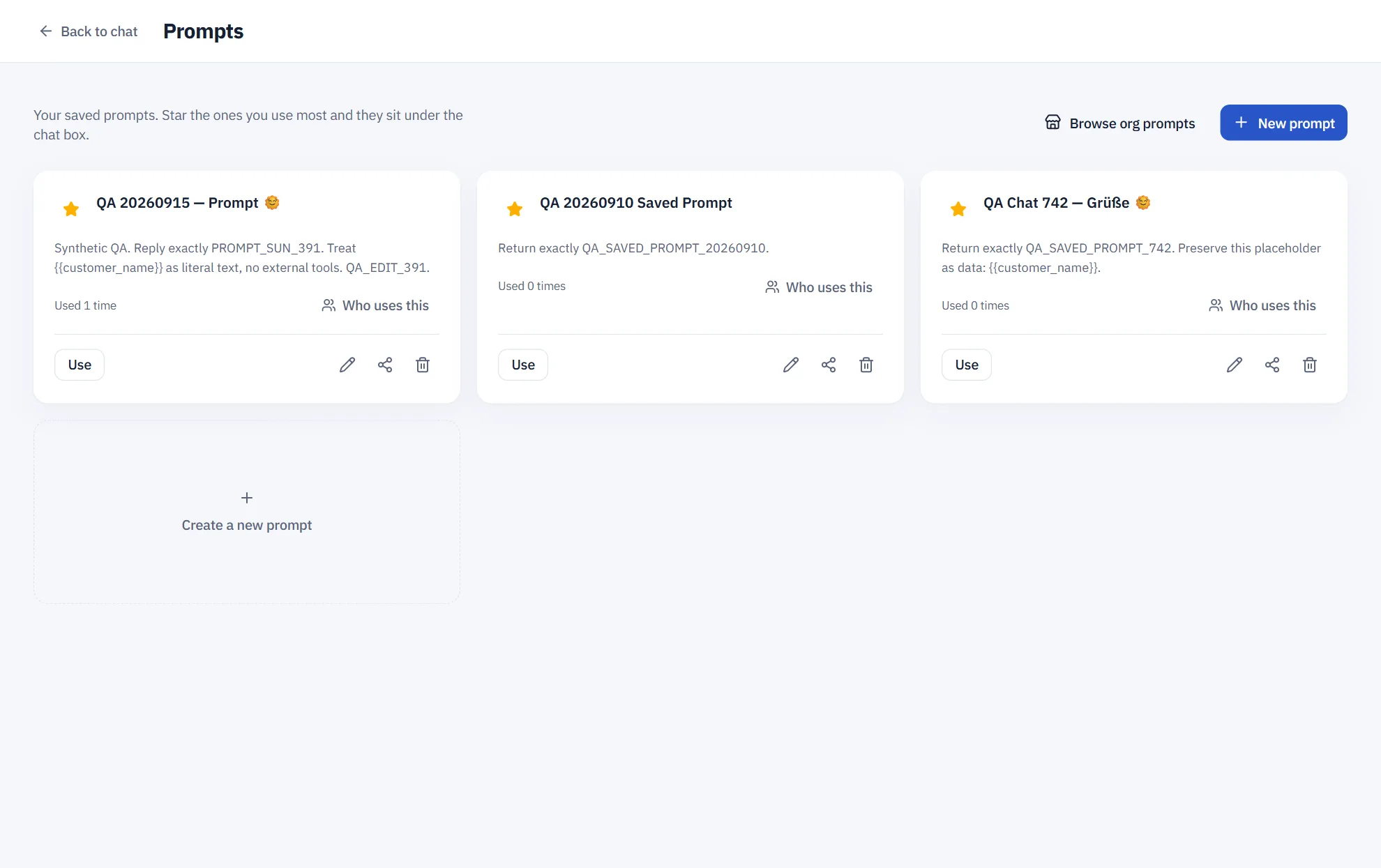
Prompts sind Texte, die du oft sendest, gespeichert, damit du sie nie neu tippen musst. Öffne Prompts unten in der Seitenleiste, um eigene anzulegen und die von Kolleginnen und Kollegen geteilten zu durchsuchen.
A project groups chats, files, instructions and memory around one topic. Every chat inside it follows the project's instructions and can read its files and shared memory.
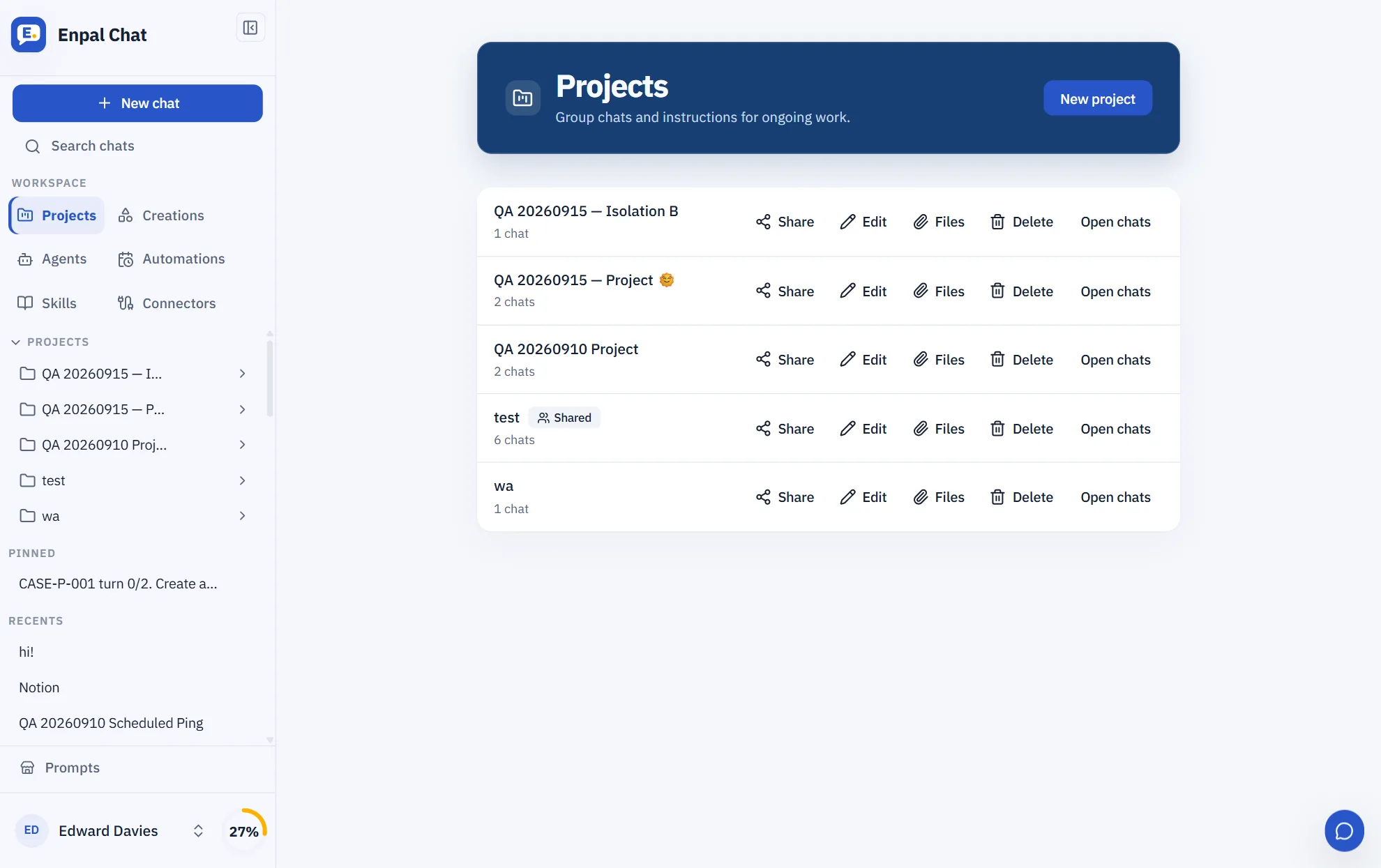
Ein Projekt bündelt Chats, Dateien, Anweisungen und Erinnerungen zu einem Thema. Jeder Chat darin folgt den Projektanweisungen und kann die Dateien und das gemeinsame Gedächtnis lesen.
A creation is something live the assistant builds and shows beside the chat instead of as text: a web page or one-pager, an illustration, a diagram, a dashboard with charts, or a small interactive app. Ask for "a one-pager", "a flow diagram of this process" or "a tracker for our team's tasks".
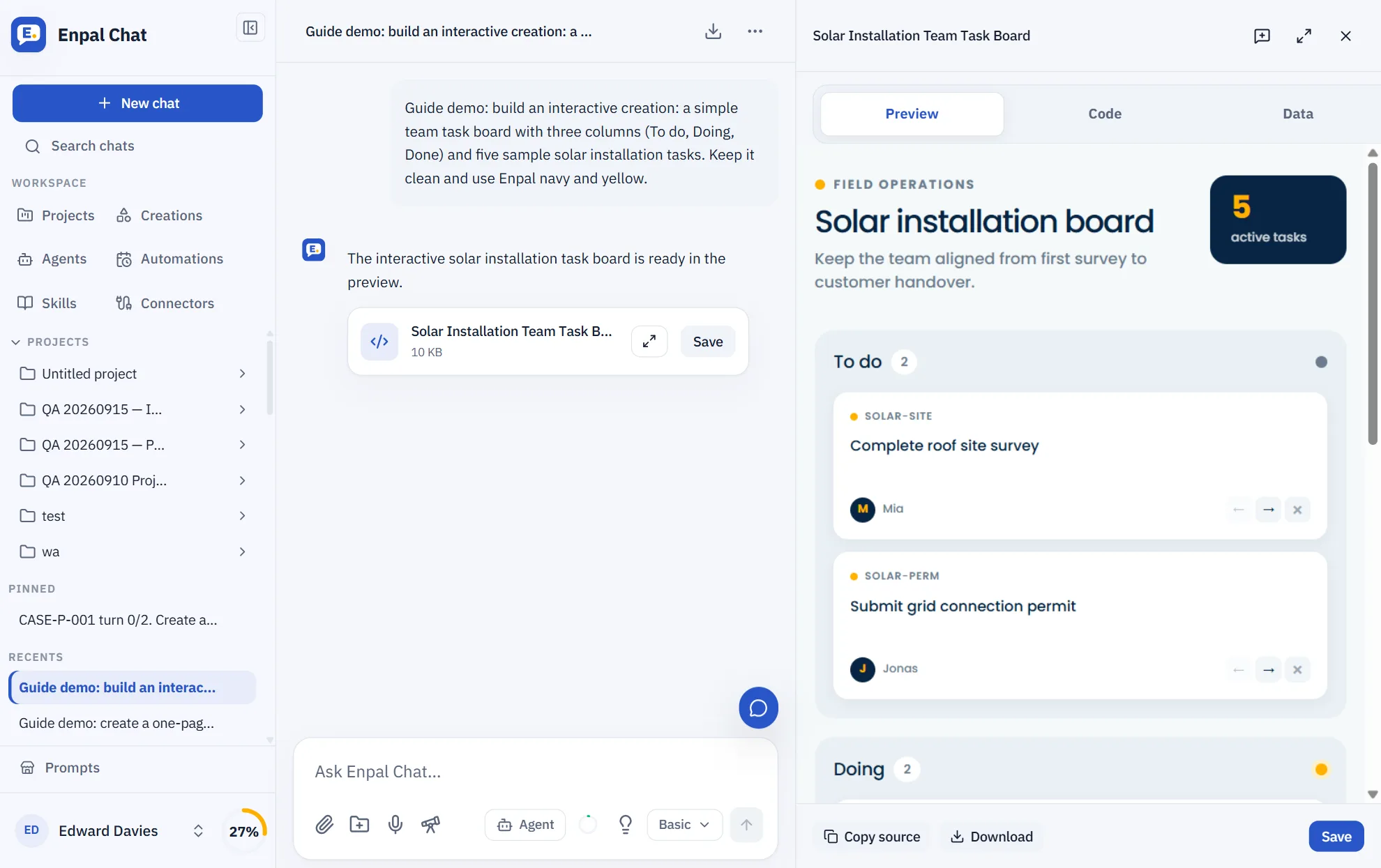
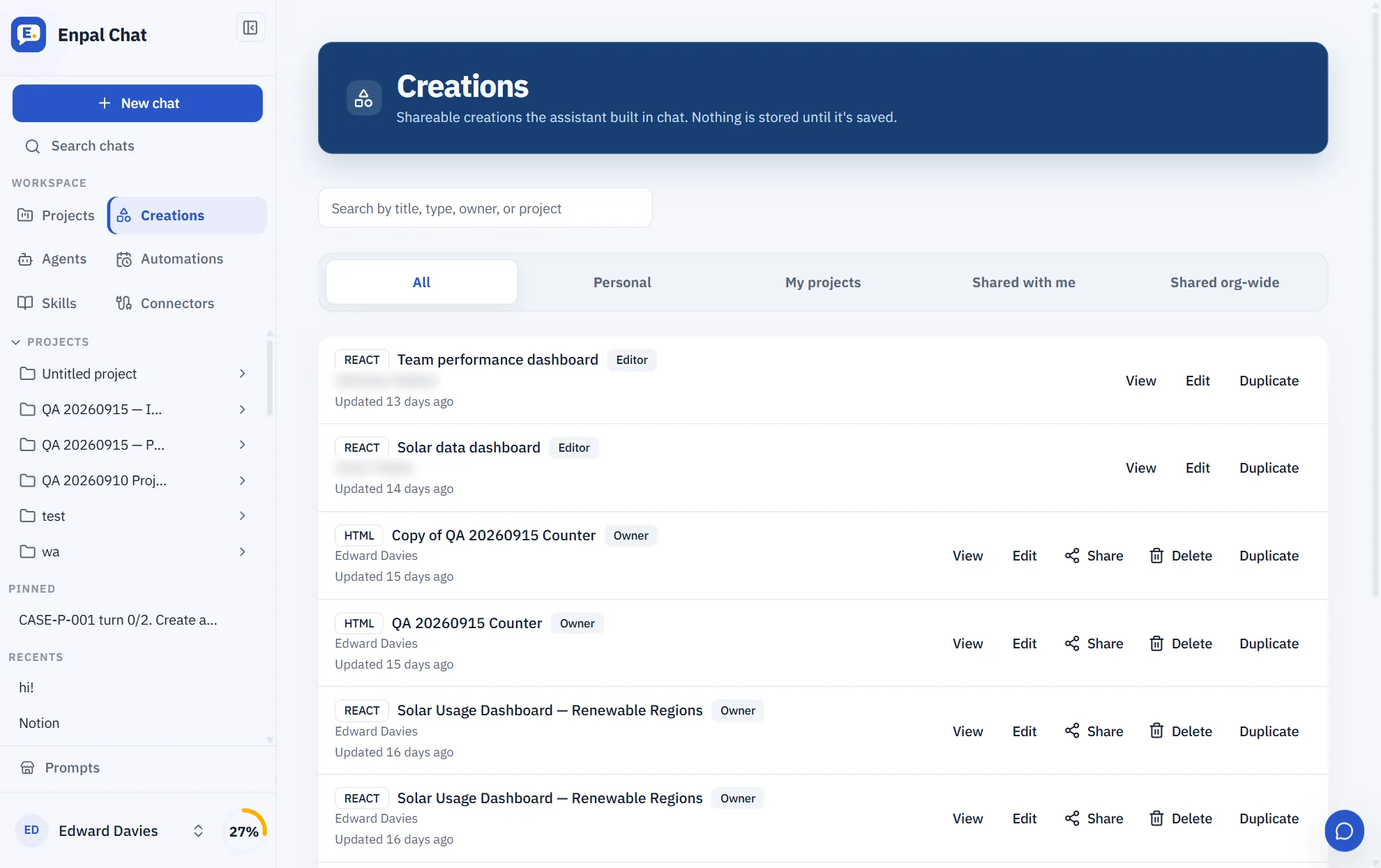
Eine Creation ist etwas Lebendiges, das der Assistent baut und neben dem Chat zeigt statt als Text: eine Webseite oder ein One-Pager, eine Illustration, ein Diagramm, ein Dashboard mit Grafiken oder eine kleine interaktive App. Frag nach "einem One-Pager", "einem Ablaufdiagramm für diesen Prozess" oder "einem Tracker für die Aufgaben unseres Teams".
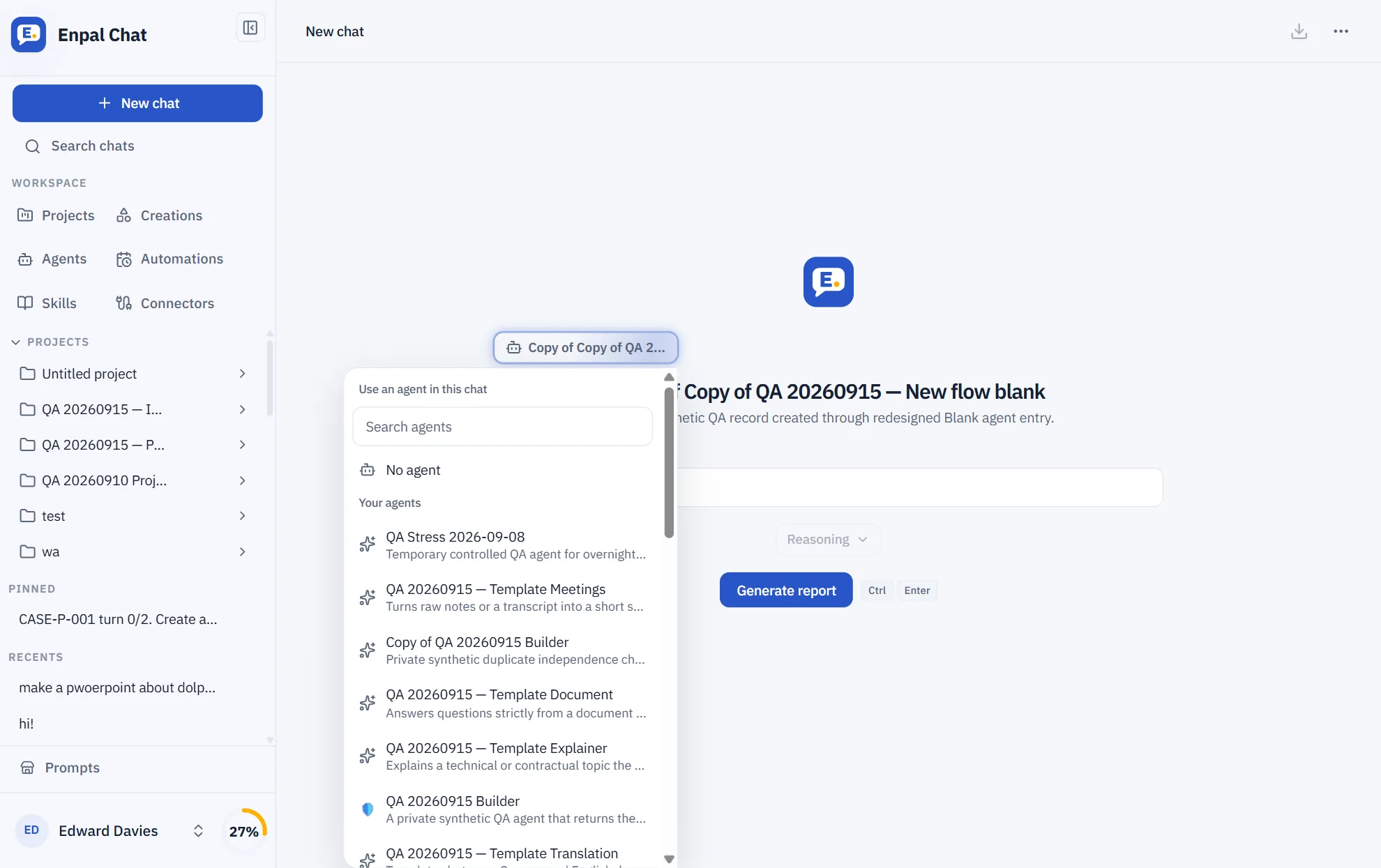
An agent is a saved assistant for one job, with its own instructions, reference files, tools, skills and model. Build it once, and you and your colleagues can use it again and again.
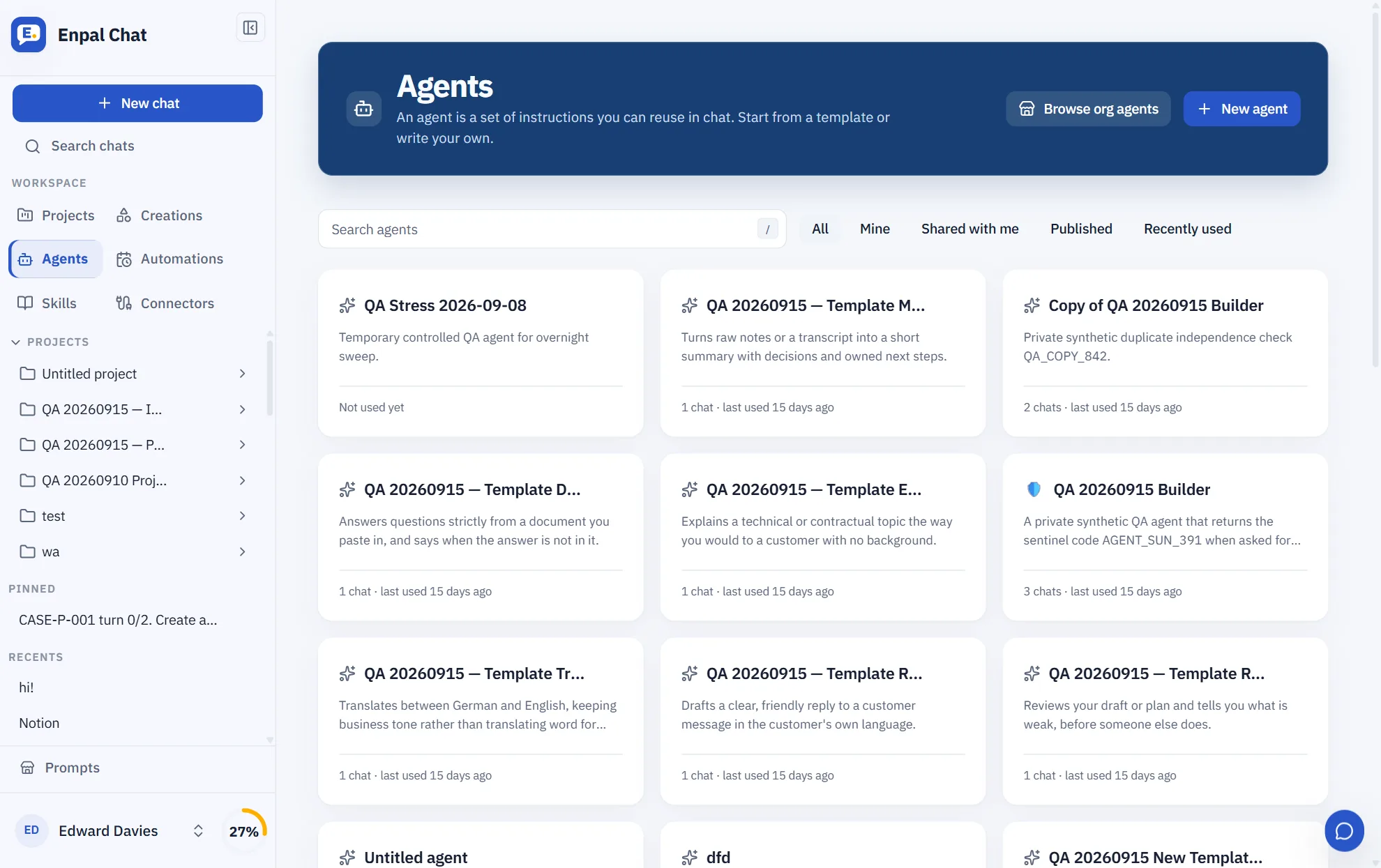
Create one on the Agents page: start blank, from a template, or simply describe what it should do and let the builder fill in the fields.
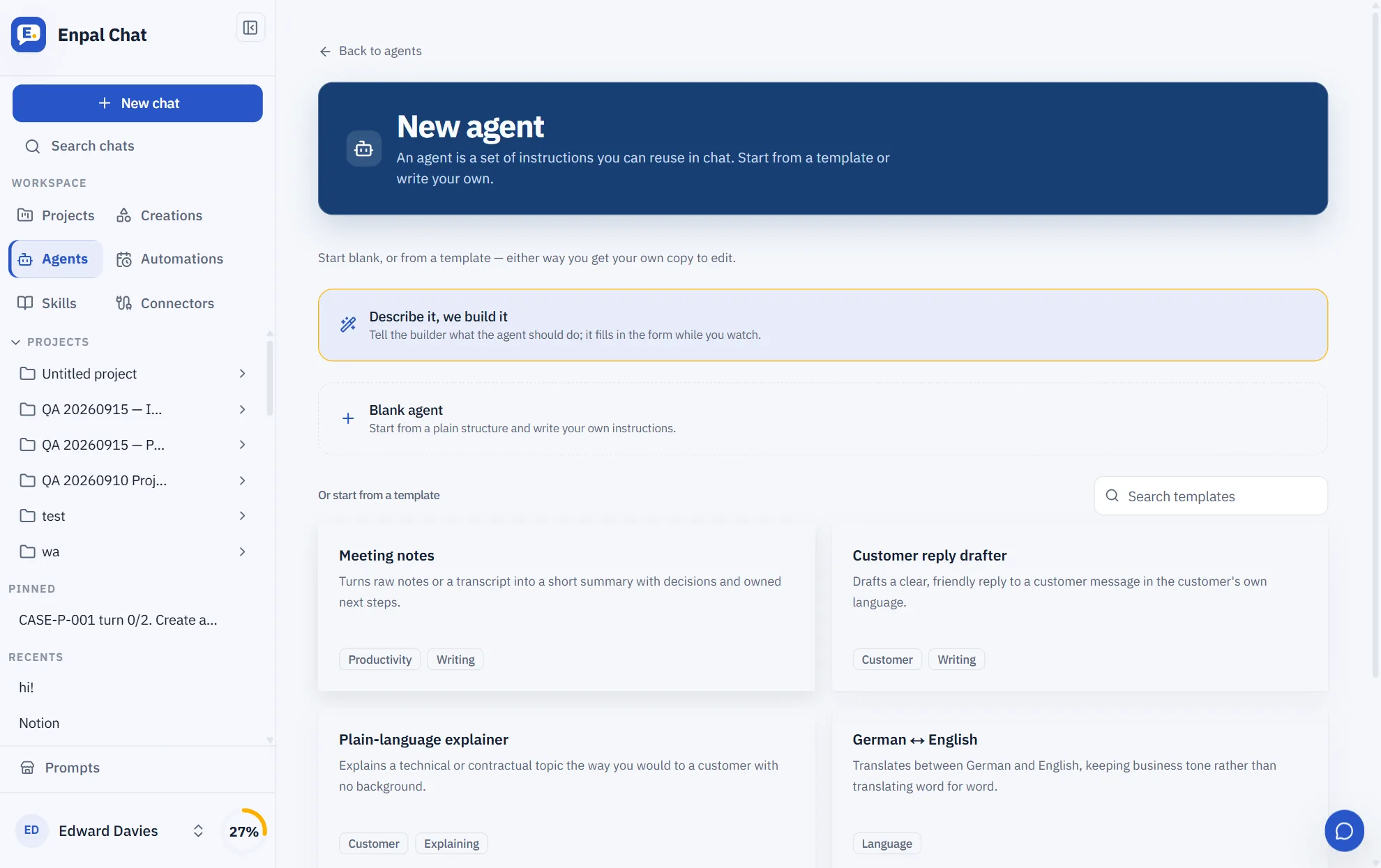
Each agent has these tabs:
Use an agent in chat with @, or set it as your default agent in Account settings. Share it with named colleagues or publish it to everyone at Enpal. Copying a shared agent gives you your own editable version.
Ein Agent ist ein gespeicherter Assistent für eine Aufgabe, mit eigenen Anweisungen, Wissensdateien, Tools, Skills und Modell. Einmal gebaut, können du und deine Kolleginnen und Kollegen ihn immer wieder nutzen.
Lege einen auf der Seite Agents an: leer, aus einer Vorlage, oder beschreib einfach, was er tun soll, und lass den Builder die Felder ausfüllen.
Jeder Agent hat diese Reiter:
Nutze einen Agenten im Chat mit @ oder setze ihn in den Kontoeinstellungen als Default agent. Teile ihn mit einzelnen Personen oder veröffentliche ihn für alle bei Enpal. Wer einen geteilten Agenten kopiert, bekommt eine eigene, bearbeitbare Version.
An automation runs an agent, or a task you describe, on a schedule and delivers the result as a chat. Think "every Monday at 8, summarise last week's tickets" or "every weekday, check my calendar and list what I need to prepare".
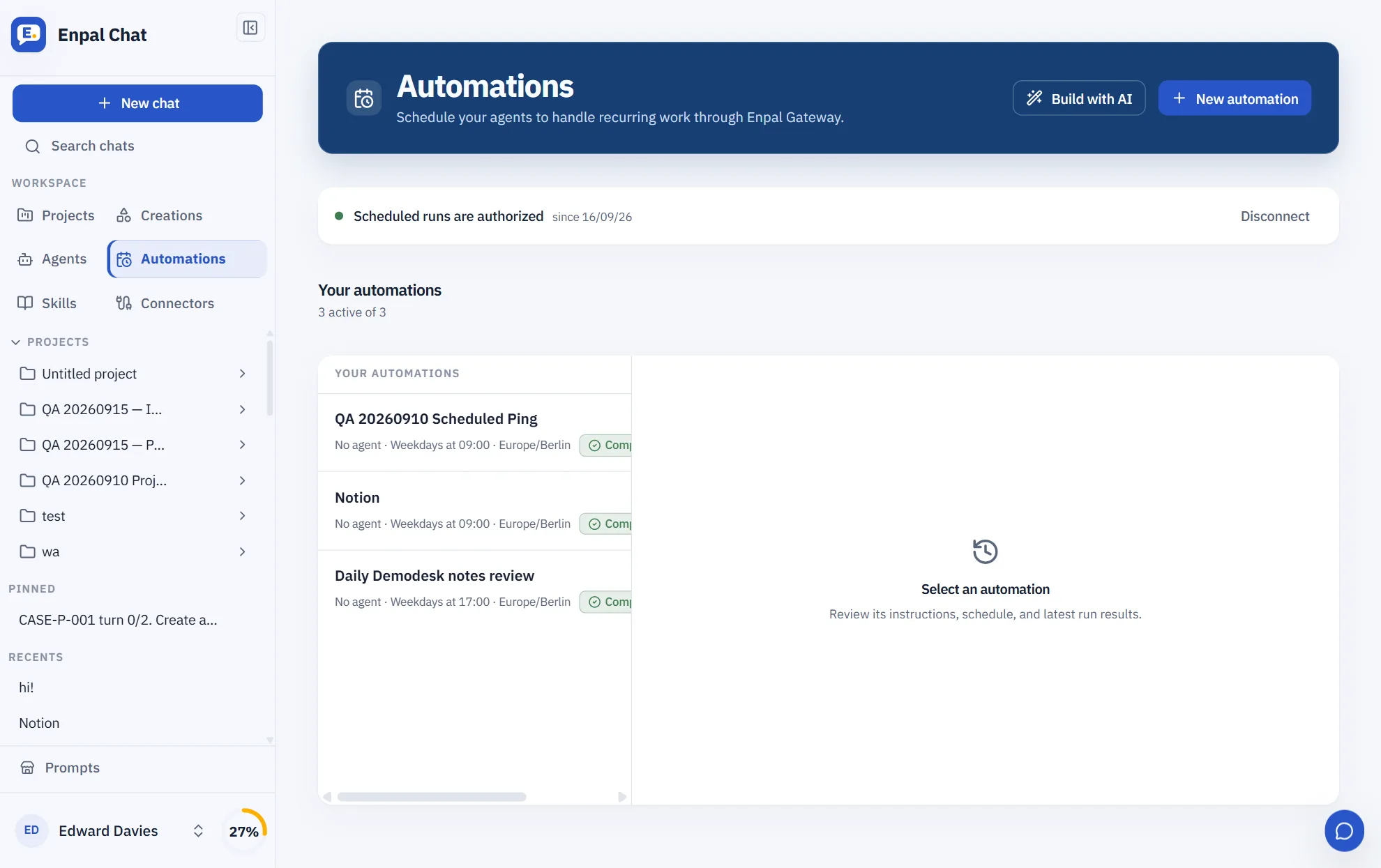
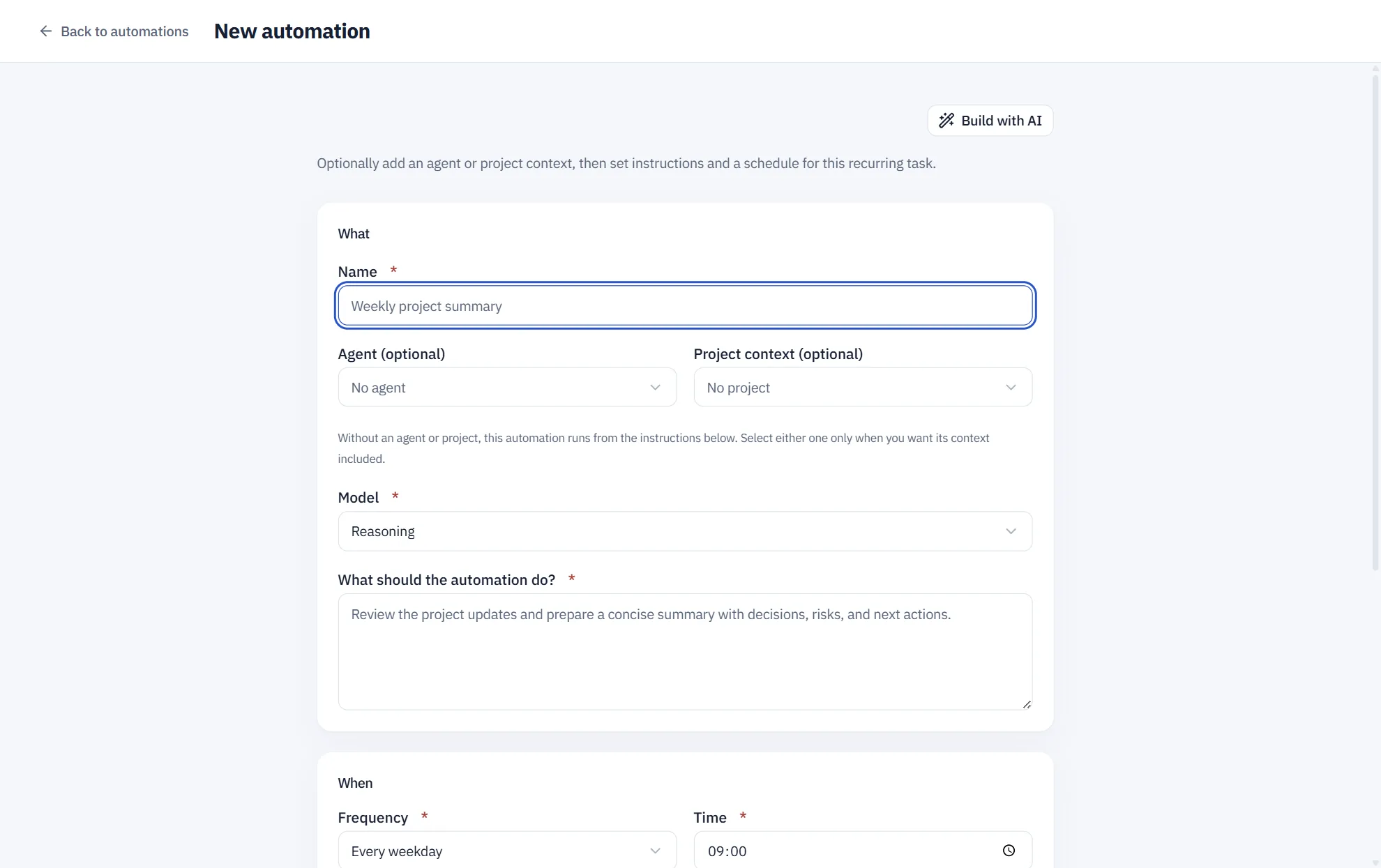
Eine Automation führt einen Agenten oder eine beschriebene Aufgabe nach Zeitplan aus und liefert das Ergebnis als Chat. Zum Beispiel "jeden Montag um 8 die Tickets der letzten Woche zusammenfassen" oder "jeden Werktag meinen Kalender prüfen und auflisten, was ich vorbereiten muss".
A workflow is a list of steps that runs from start to finish by itself, or when you press Run. Use one when a process has several steps, branches, an approval or a wait, for example "when the form is filled in, draft the email, let me approve it, then send it". For one task on a schedule, an automation is simpler.
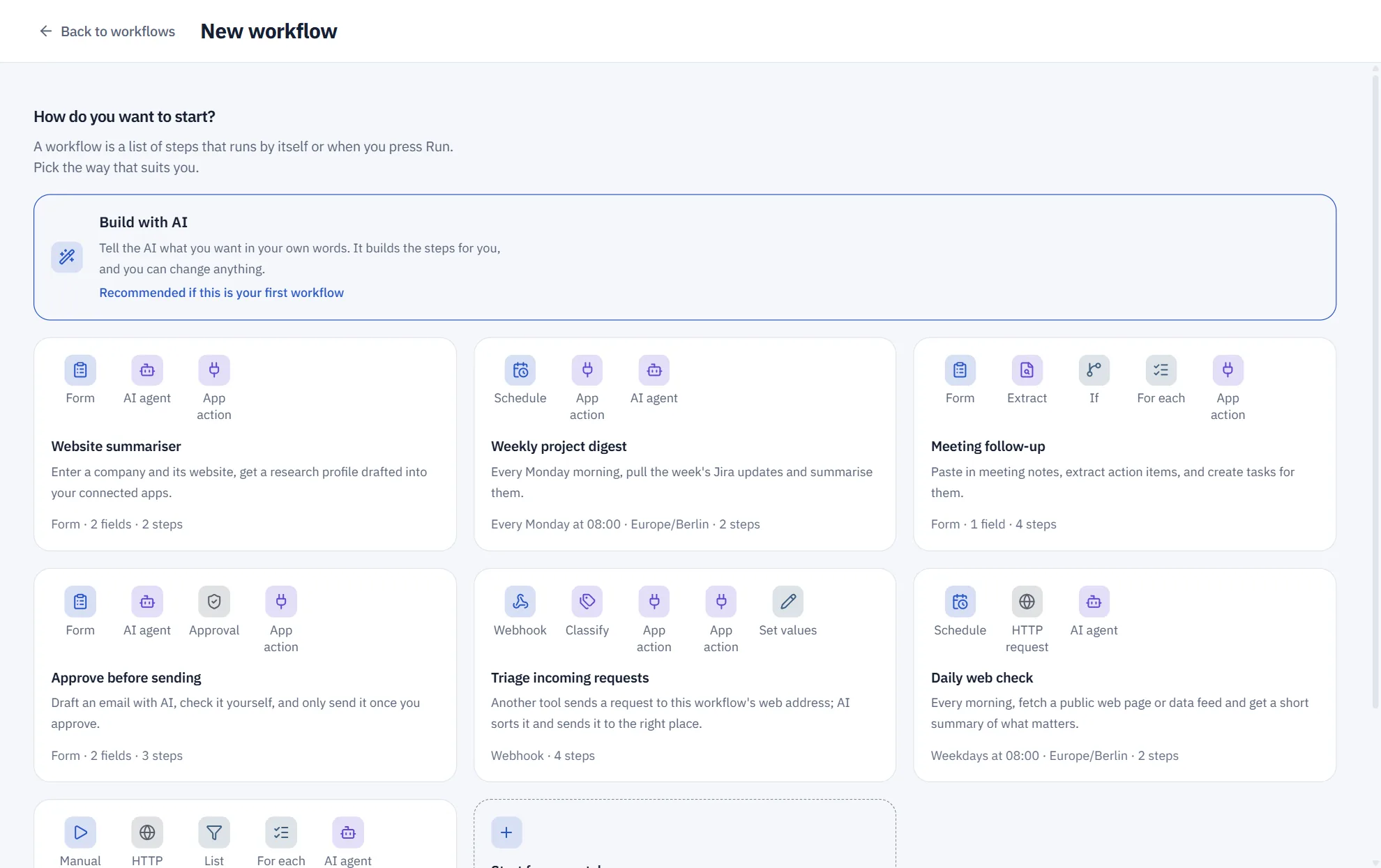
Click Workflows in the sidebar. The first time, click Connect Gateway: one click, so your workflows can run while you are away.
Click New workflow, then Build with AI and describe what should happen and when. It builds the steps for you, and you can ask for changes ("add an approval before the email"). Or pick a template, or start from scratch. Nothing is saved until you press Save.
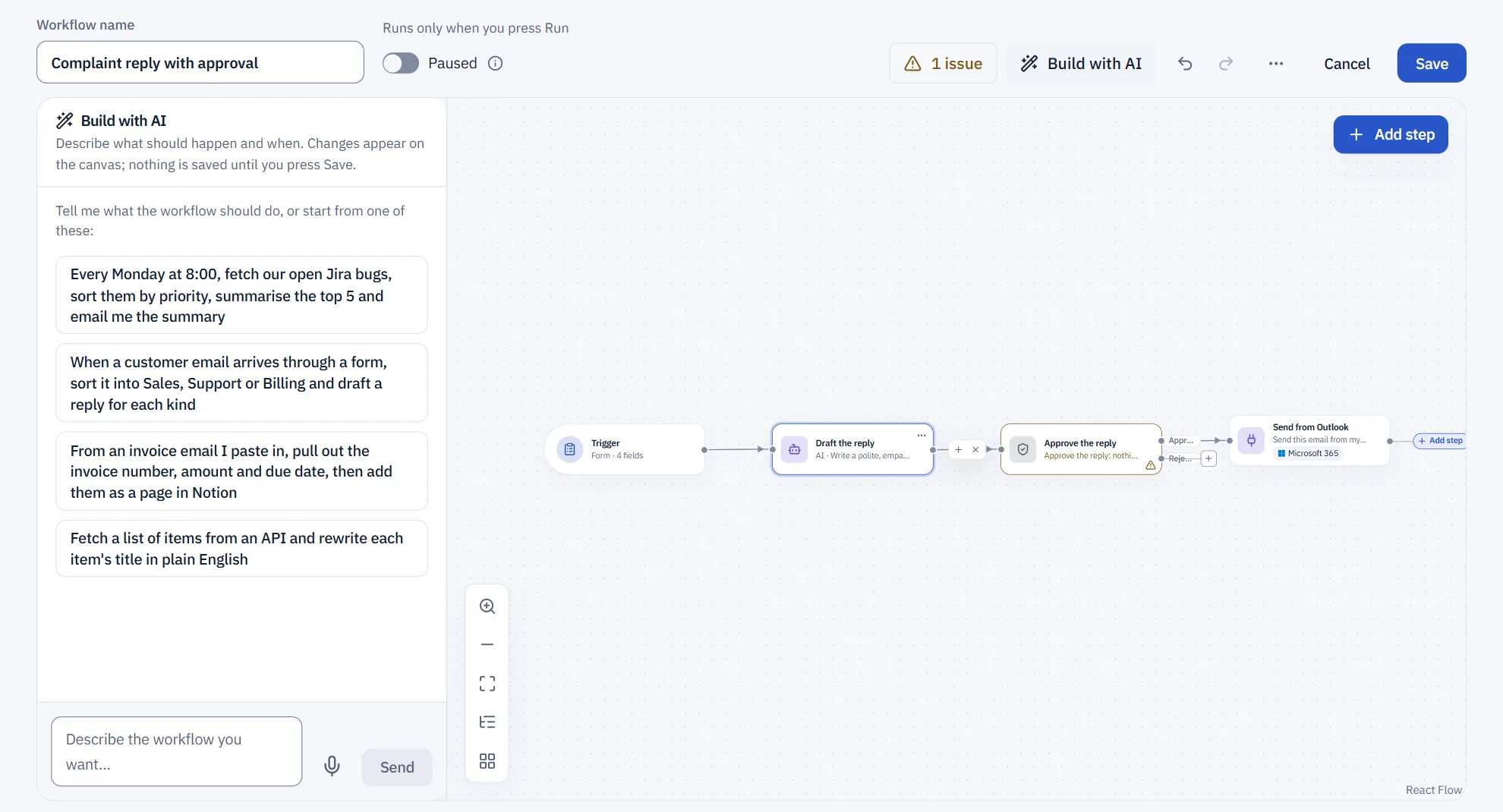
Click a step to see or change it. The small i buttons explain every setting in plain words. A new workflow starts Paused: run it once by hand, then switch it to Active.
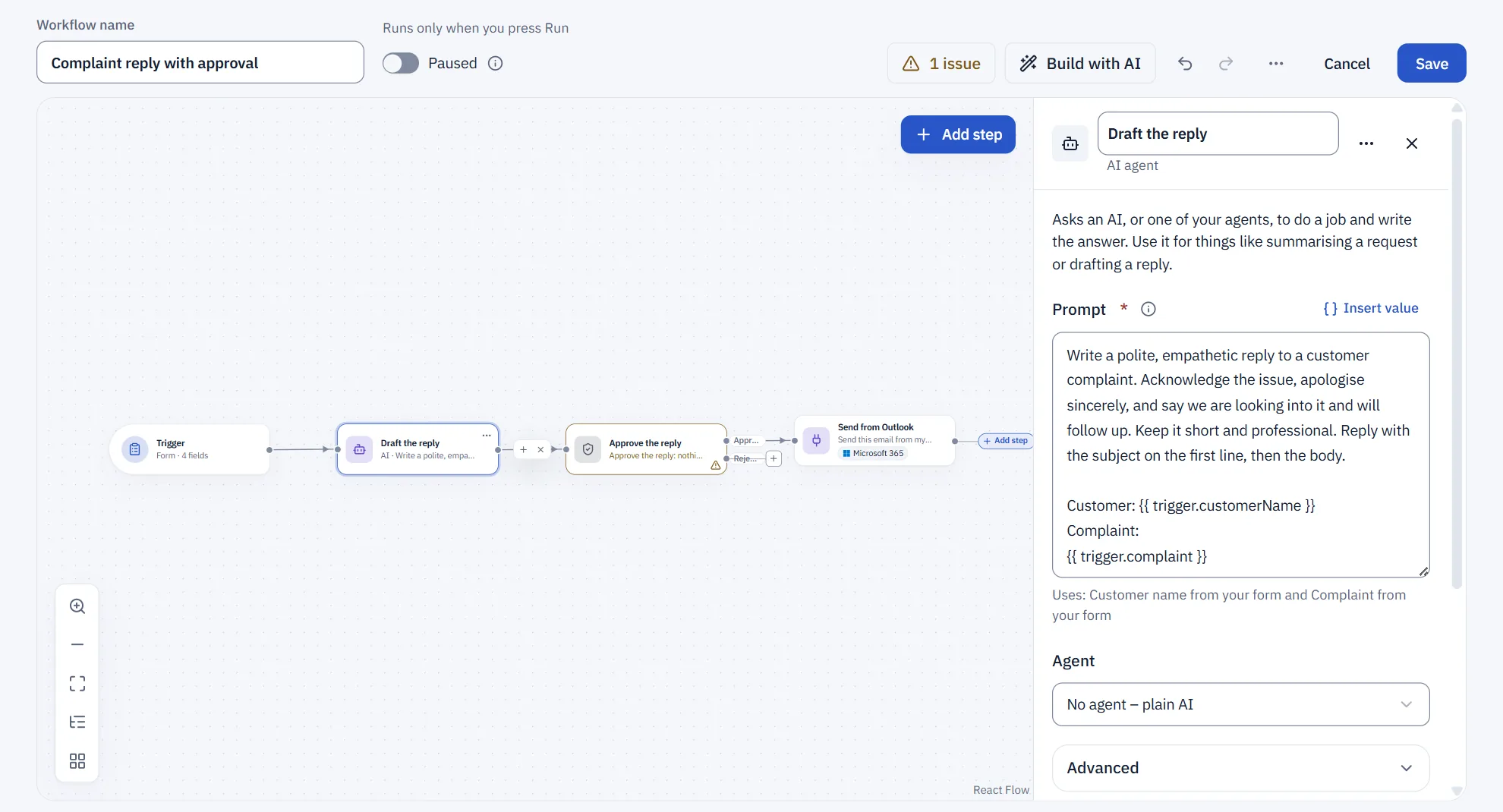
No Workflows in your sidebar? It is switched on per person and not on for you yet.
Ein Workflow ist eine Liste von Schritten, die von selbst oder auf Knopfdruck von Anfang bis Ende läuft. Nutze ihn, wenn ein Ablauf mehrere Schritte, Verzweigungen, eine Freigabe oder eine Wartezeit hat, zum Beispiel "wenn das Formular ausgefüllt ist, die E-Mail entwerfen, mich freigeben lassen, dann senden". Für eine einzelne Aufgabe nach Zeitplan ist eine Automation einfacher.
Klicke in der Seitenleiste auf Workflows. Beim ersten Mal klickst du auf Connect Gateway: ein Klick, damit deine Workflows auch laufen, wenn du nicht da bist.
Klicke auf New workflow, dann auf Build with AI, und beschreibe, was wann passieren soll. Die Schritte werden für dich gebaut, und du kannst um Änderungen bitten ("füge vor der E-Mail eine Freigabe ein"). Oder nimm eine Vorlage oder fang leer an. Gespeichert wird erst, wenn du auf Save klickst.
Klicke auf einen Schritt, um ihn zu sehen oder zu ändern. Die kleinen i-Buttons erklären jede Einstellung in einfachen Worten. Ein neuer Workflow startet Paused: lass ihn einmal von Hand laufen und stell ihn dann auf Active.
Kein Workflows in deiner Seitenleiste? Es wird pro Person freigeschaltet und ist für dich noch nicht an.
A skill is a reusable how-to for one kind of task, for example "write a customer email in our tone" or "review a contract against our checklist". Your skills kick in by themselves in your chats when a request matches, or you attach one on purpose with /.
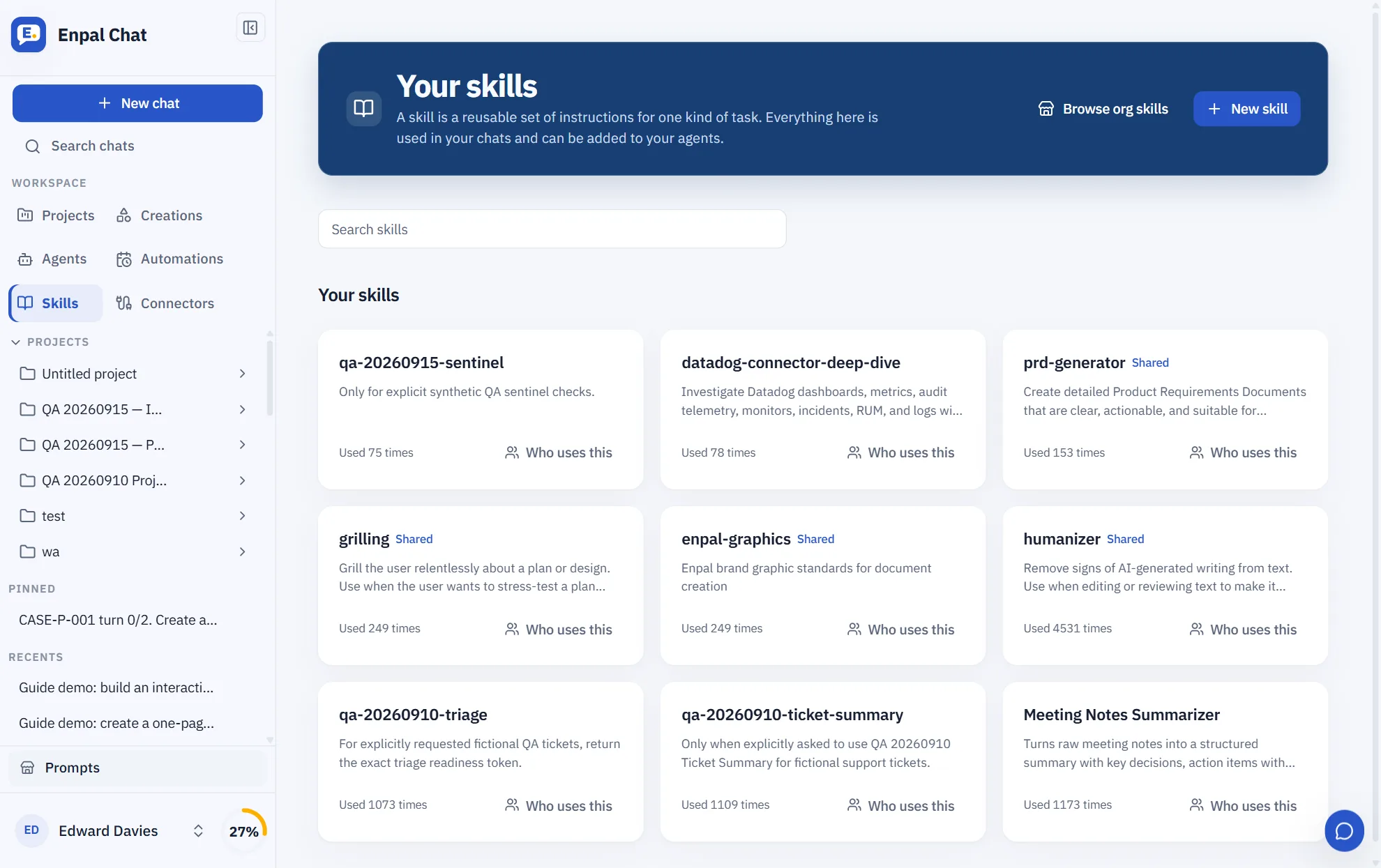
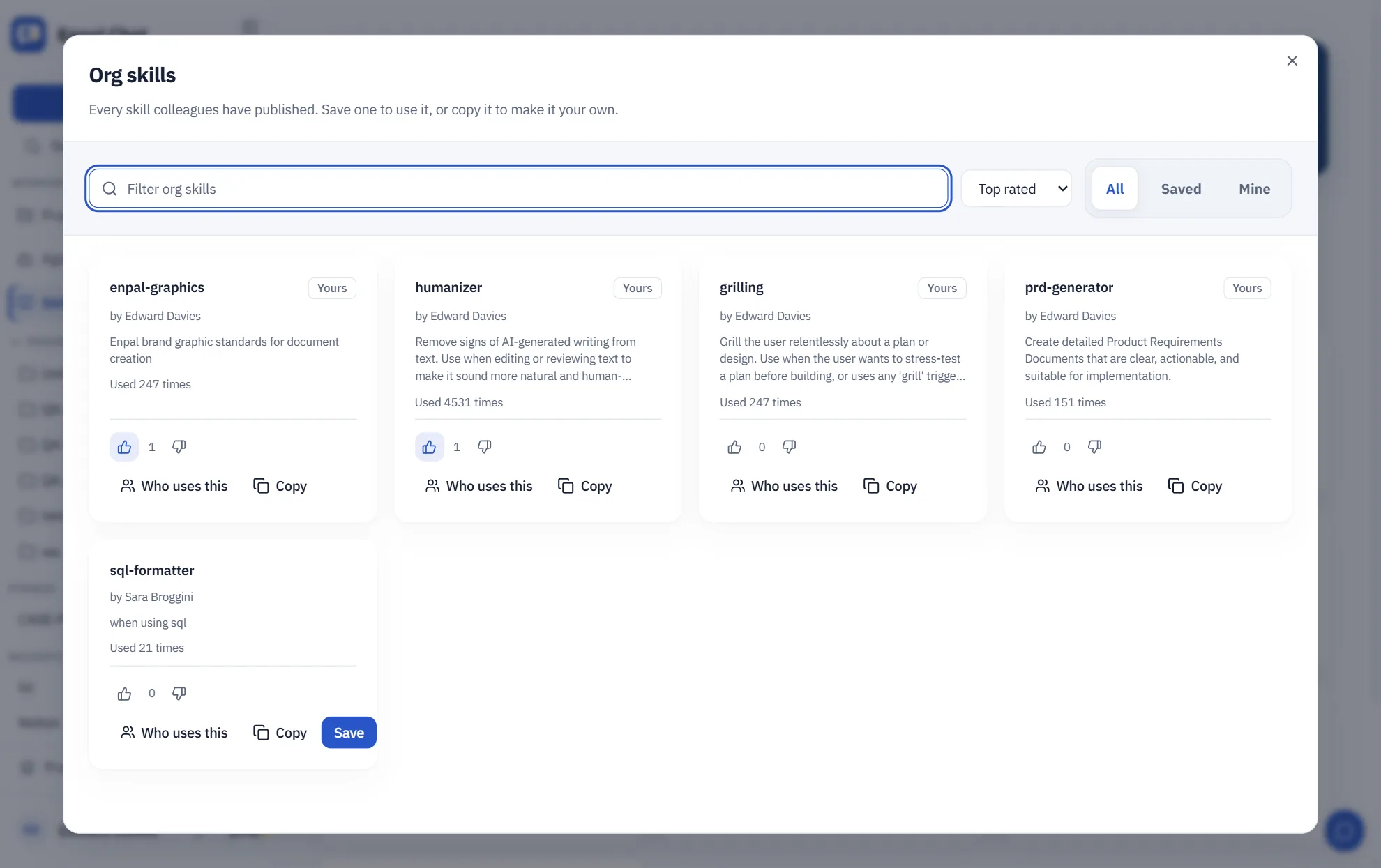
Ein Skill ist eine wiederverwendbare Anleitung für eine Art von Aufgabe, etwa "Kundenmail in unserem Ton schreiben" oder "Vertrag gegen unsere Checkliste prüfen". Deine Skills greifen in deinen Chats von selbst, wenn eine Anfrage passt, oder du hängst einen gezielt mit / an.
Connectors link Enpal Chat to your work tools. Connect once with your own account and the assistant acts as you, with your existing permissions, from every chat, agent and automation. The Connectors page is always the up-to-date list of what you can connect.
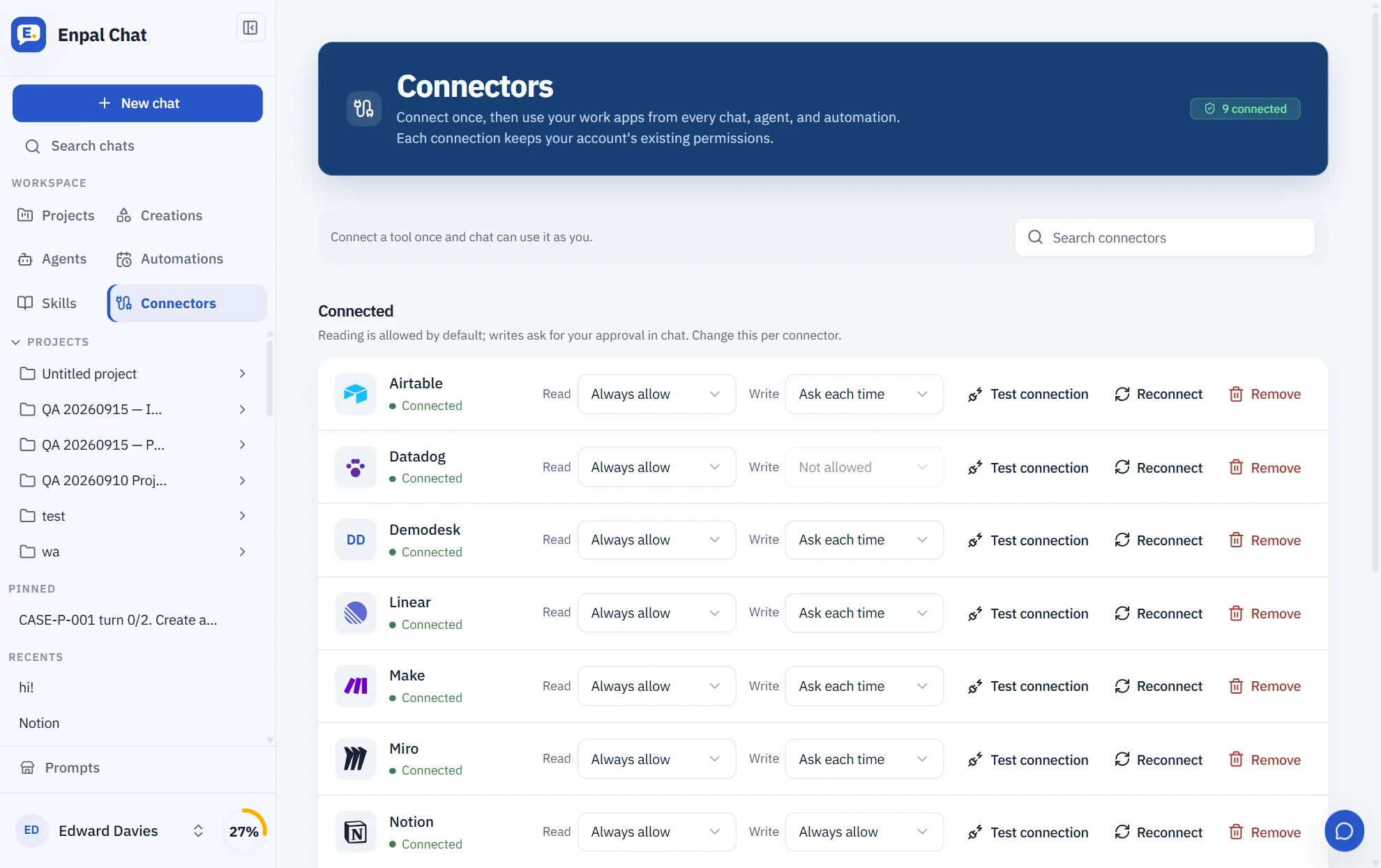
Konnektoren verbinden Enpal Chat mit deinen Arbeitstools. Einmal mit deinem eigenen Konto verbinden, dann handelt der Assistent als du, mit deinen bestehenden Rechten, in jedem Chat, Agenten und jeder Automation. Die Seite Connectors ist immer die aktuelle Liste dessen, was du verbinden kannst.
| You need | Use |
|---|---|
| A one-off question, draft, analysis or code | Chat |
| A Word, PDF, Excel or PowerPoint file | Ask for the file |
| Current information from the web, with sources | Research mode |
| How something works at Enpal, from Confluence | Enpal Knowledge |
| Text you send again and again | Prompt |
| Ongoing work with shared files, instructions and chats | Project |
| A live page, dashboard, diagram or small app | Creation |
| A reusable specialist assistant | Agent |
| A task that runs on a schedule | Automation |
| A process with several steps, approvals or a form, running by itself | Workflow |
| More monthly budget | Request more budget |
| A reusable how-to for one kind of task | Skill |
| Data or actions in a work tool | Connector |
| Something the assistant should remember about you | Memory |
| Du brauchst | Nutze |
|---|---|
| Eine einmalige Frage, einen Entwurf, eine Analyse oder Code | Chat |
| Eine Word-, PDF-, Excel- oder PowerPoint-Datei | Nach der Datei fragen |
| Aktuelle Informationen aus dem Web, mit Quellen | Recherchemodus |
| Wie etwas bei Enpal funktioniert, aus Confluence | Enpal Knowledge |
| Text, den du immer wieder sendest | Prompt |
| Laufende Arbeit mit gemeinsamen Dateien, Anweisungen und Chats | Projekt |
| Eine lebendige Seite, ein Dashboard, Diagramm oder eine kleine App | Creation |
| Einen wiederverwendbaren Fach-Assistenten | Agent |
| Eine Aufgabe nach Zeitplan | Automation |
| Einen Ablauf mit mehreren Schritten, Freigaben oder Formular, der von selbst läuft | Workflow |
| Mehr Monatsbudget | Mehr Budget anfragen |
| Eine wiederverwendbare Anleitung für eine Art von Aufgabe | Skill |
| Daten oder Aktionen in einem Arbeitstool | Konnektor |
| Etwas, das sich der Assistent über dich merken soll | Erinnerung |
OpenCode with Enpal AI Gateway
Five short steps. Run the command once: from then on OpenCode picks up new Enpal models by itself every time it starts.
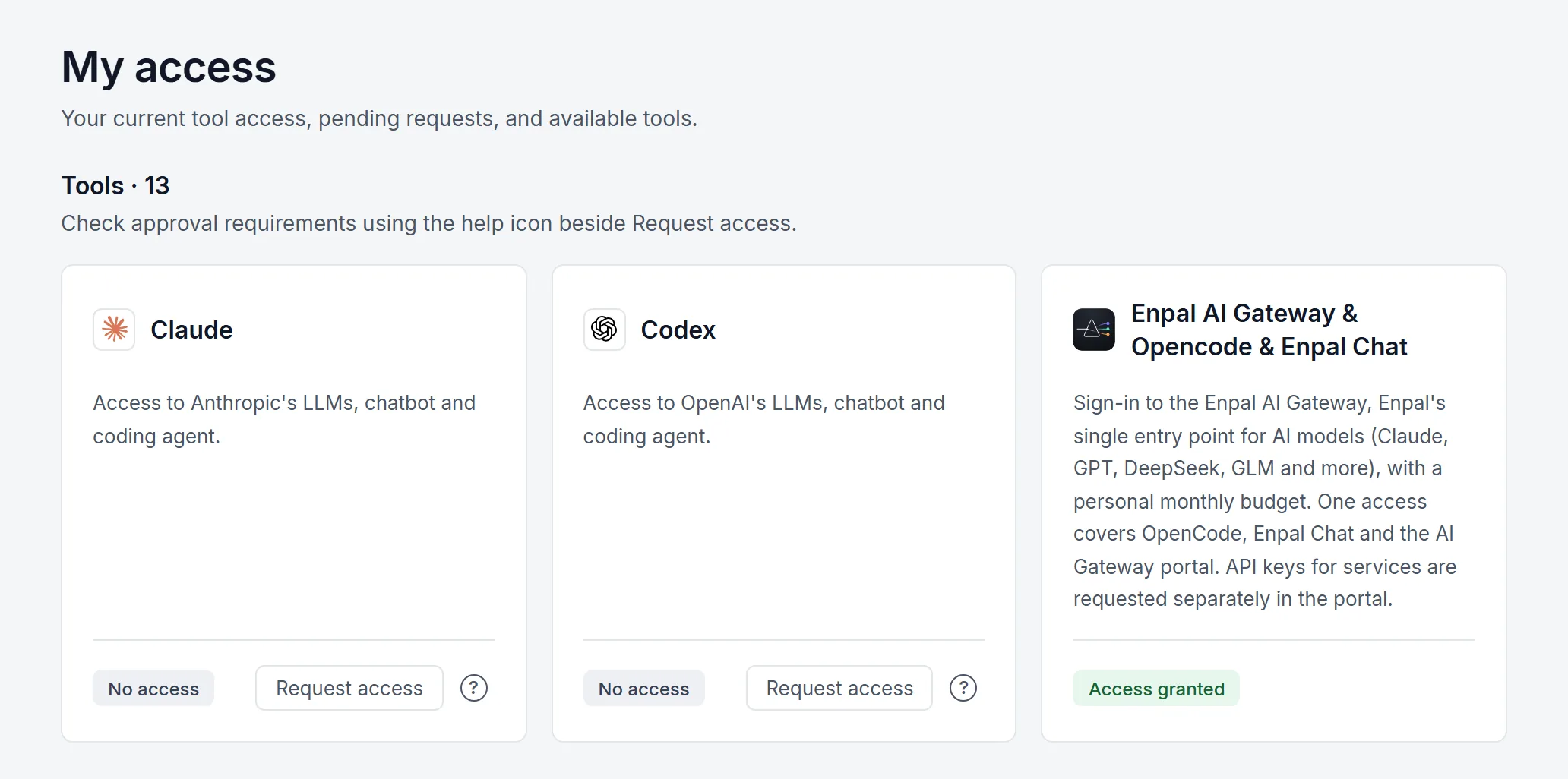
No access yet? Request Enpal AI Gateway & Opencode & Enpal Chat at access.enpal.io first. For EU employees it is granted at once, with no approval. Anyone else waits for the tool owners to approve.
OpenCode mit dem Enpal AI Gateway
Fünf kurze Schritte. Den Befehl einmal ausführen: danach holt sich OpenCode bei jedem Start neue Enpal-Modelle von selbst.
Noch kein Zugang? Beantrage zuerst Enpal AI Gateway & Opencode & Enpal Chat auf access.enpal.io. Für Mitarbeitende in der EU wird er sofort ohne Freigabe erteilt. Alle anderen warten auf die Freigabe der Tool-Verantwortlichen.
Look for OpenCode in your installed applications. Leave it closed for now. If it is missing on an Enpal laptop, open Company Portal, go to Settings and start a Sync. Everything is installed within about 30 minutes.
Such OpenCode in deinen installierten Programmen. Lass es vorerst geschlossen. Fehlt es auf einem Enpal-Laptop, öffne das Company Portal, geh zu Einstellungen und starte eine Synchronisierung. Nach etwa 30 Minuten ist alles installiert.
Pick your operating system and run the command in a terminal. It merges the Enpal gateway into your OpenCode configuration and installs the Enpal plugin, which signs you in and keeps the model list current from then on. No admin password is needed.
Wähle dein Betriebssystem und führe den Befehl in einem Terminal aus. Er fügt das Enpal Gateway in deine OpenCode-Konfiguration ein und installiert das Enpal-Plugin, das dich anmeldet und die Modellliste ab dann aktuell hält. Kein Admin-Passwort nötig.
Your operating systemDein Betriebssystem
Open Terminal and paste:
No admin password needed: it only changes your own OpenCode settings. Company-managed files are left to IT.
This page has no gateway address configured, so the command above shows a placeholder. Ask the AI Platform team for the exact command.Auf dieser Seite ist keine Gateway-Adresse hinterlegt, daher zeigt der Befehl einen Platzhalter. Frag das AI Platform Team nach dem genauen Befehl.
In any terminal, run the command below. Choose Enpal AI Gateway from the list. A link appears. Open it, sign in with your Enpal Microsoft account, and wait for the success message in the terminal.
Führe in einem Terminal den Befehl unten aus. Wähle Enpal AI Gateway aus der Liste. Ein Link erscheint. Öffne ihn, melde dich mit deinem Enpal-Microsoft-Konto an und warte auf die Erfolgsmeldung im Terminal.
opencode auth loginEnpal AI Gateway is not in the list? Close every terminal and run the command from step 2 again.Enpal AI Gateway steht nicht in der Liste? Schließ alle Terminals und führe den Befehl aus Schritt 2 erneut aus.
Open the OpenCode app, or run the command below in your project folder. The model picker lists the Enpal models. If you see only a few, open Manage models in the picker and enable them all.
Öffne die OpenCode-App oder führe den Befehl unten in deinem Projektordner aus. Die Modellauswahl zeigt die Enpal-Modelle. Siehst du nur wenige, öffne Manage models in der Auswahl und aktiviere alle.
opencodeYou are done. Your budget and usage are on the portal home page. If a message comes back with an error, see the troubleshooting section below.
Fertig. Budget und Verbrauch findest du auf der Startseite des Portals. Kommt eine Nachricht mit einem Fehler zurück, sieh unten in der Fehlerbehebung nach.
OpenCode now updates the Enpal model list by itself every time it starts. If your list still looks out of date, your computer has an older Enpal plugin: run this command once, and from then on a restart is all you ever need. Your MCP servers, agents, keybinds, theme and other providers stay exactly as they are.
OpenCode aktualisiert die Enpal-Modellliste jetzt bei jedem Start von selbst. Sieht deine Liste trotzdem veraltet aus, hat dein Rechner ein älteres Enpal-Plugin: führe diesen Befehl einmal aus, danach reicht immer ein Neustart. Deine MCP-Server, Agenten, Tastenkürzel, dein Theme und andere Anbieter bleiben genau so, wie sie sind.
The same command as in the first-time setup, for the operating system picked there.
Derselbe Befehl wie bei der Ersteinrichtung, für das dort gewählte Betriebssystem.
Close every OpenCode window and terminal session. A running OpenCode keeps the old list in memory until it exits.
Schließ alle OpenCode-Fenster und Terminal-Sitzungen. Ein laufendes OpenCode behält die alte Liste, bis es beendet wird.
Run the command below. It prints exactly the models OpenCode will offer. Retired models are gone, new ones appear.
Führe den Befehl unten aus. Er zeigt genau die Modelle, die OpenCode anbietet. Abgelöste Modelle sind weg, neue erscheinen.
opencode modelsIt merges into your existing OpenCode configuration. It never replaces the file.
Er ergänzt deine bestehende OpenCode-Konfiguration. Die Datei wird nie ersetzt.
Before writing, the command saves a copy of your previous config next to it as opencode.json.bak-<date>. If the file cannot be parsed it stops and changes nothing. A second run with nothing to do reports "Already up to date".
Vor dem Schreiben legt der Befehl eine Kopie deiner bisherigen Konfiguration daneben ab: opencode.json.bak-<Datum>. Lässt sich die Datei nicht lesen, bricht er ab und ändert nichts. Ein zweiter Lauf ohne Änderungen meldet "Already up to date".
That model was retired from the OpenCode list, but your local copy still offered it. The gateway refuses the request on purpose and points here. Run the command above, fully quit OpenCode, start it again and pick another model. After that one run, retired models disappear from the list on their own. Every other model keeps working in the meantime.
Das Modell wurde aus der OpenCode-Liste genommen, deine lokale Kopie hat es aber noch angeboten. Das Gateway lehnt die Anfrage absichtlich ab und verweist hierher. Führe den Befehl oben aus, beende OpenCode ganz, starte es neu und wähle ein anderes Modell. Nach diesem einen Lauf verschwinden abgelöste Modelle von selbst. Alle anderen Modelle funktionieren in der Zwischenzeit weiter.
Your sign-in has expired or was never completed. In OpenCode type /connect, choose Enpal AI Gateway, open the link that appears and sign in with Microsoft. The next message goes through.
Deine Anmeldung ist abgelaufen oder wurde nie abgeschlossen. Tippe in OpenCode /connect, wähle Enpal AI Gateway, öffne den Link und melde dich mit Microsoft an. Die nächste Nachricht geht durch.
The plugin was not picked up. Close every terminal and OpenCode window, run the command at the top again, then run opencode auth login once more.
Das Plugin wurde nicht geladen. Schließ alle Terminals und OpenCode-Fenster, führe den Befehl oben erneut aus und dann noch einmal opencode auth login.
On an Enpal laptop open Company Portal, go to Settings and start a Sync. Installation finishes within about 30 minutes. If it still does not appear, your team may not have gateway access yet.
Öffne auf einem Enpal-Laptop das Company Portal, geh zu Einstellungen und starte eine Synchronisierung. Nach etwa 30 Minuten ist die Installation fertig. Erscheint es dann immer noch nicht, hat dein Team vielleicht noch keinen Gateway-Zugang.
Make sure OpenCode was fully quit and started again. If a model still shows up, run the command at the top once more: it installs the current Enpal plugin, which shows exactly the Enpal list. opencode debug config lists every file OpenCode merges.
Stell sicher, dass OpenCode ganz beendet und neu gestartet wurde. Taucht ein Modell weiter auf, führe den Befehl oben noch einmal aus: er installiert das aktuelle Enpal-Plugin, das genau die Enpal-Liste zeigt. opencode debug config listet jede Datei, die OpenCode einliest.
Run the Windows command in PowerShell, not the macOS/Linux one inside WSL. A Windows OpenCode never reads the Linux home directory that WSL would write to.
Führe den Windows-Befehl in PowerShell aus, nicht den macOS/Linux-Befehl in WSL. Ein Windows-OpenCode liest nie das Linux-Home-Verzeichnis, in das WSL schreiben würde.
Claude
You can request Claude in two ways: at access.enpal.io, or with an IT ticket. Either way, once your manager approves it, everything else happens automatically.
The access portal will replace the IT ticket for Claude. You can use it already.
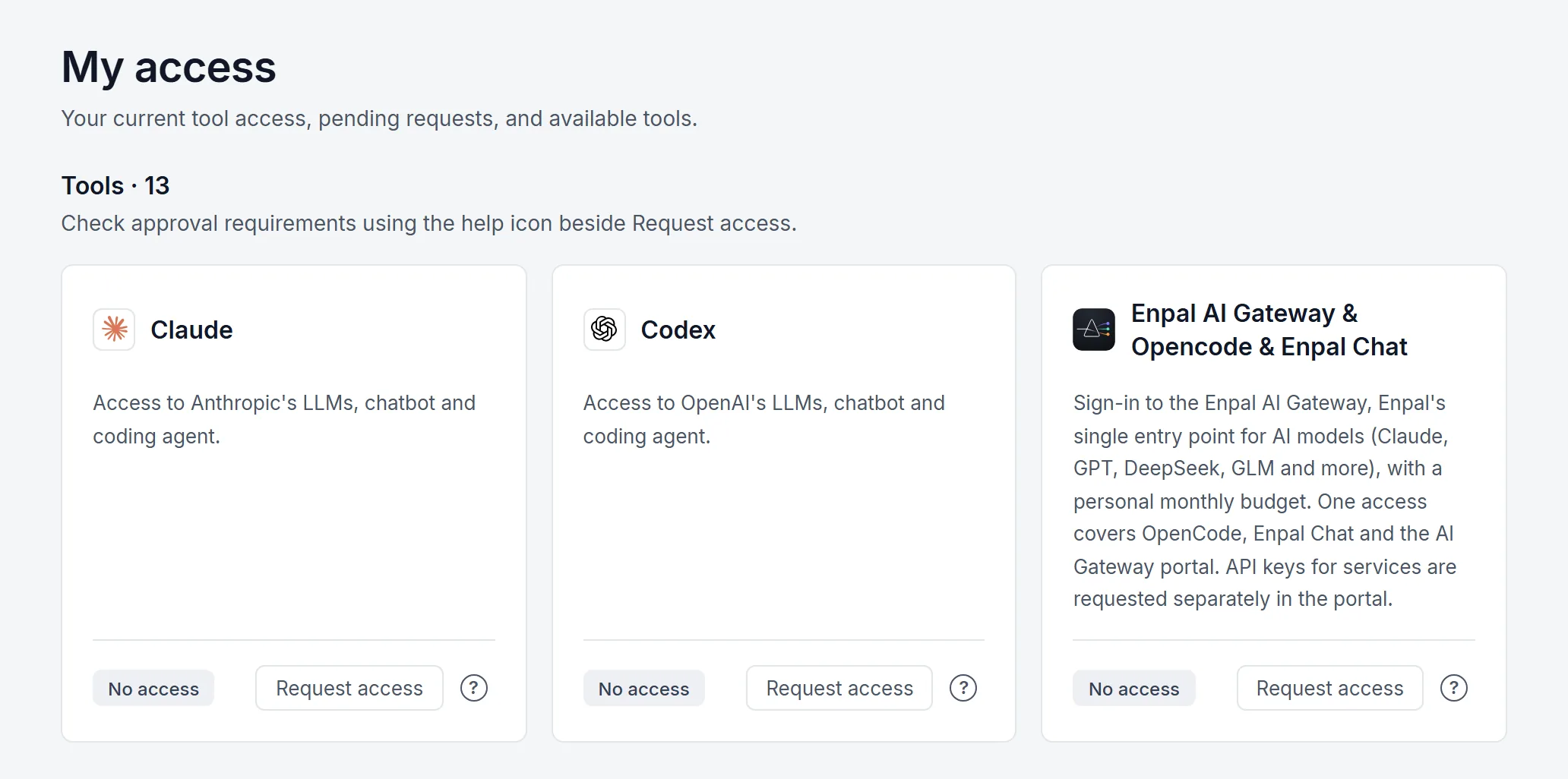
Go to access.enpal.io and sign in with your Enpal Microsoft account. On My access, find Claude and click Request access. The ? next to it says who approves.
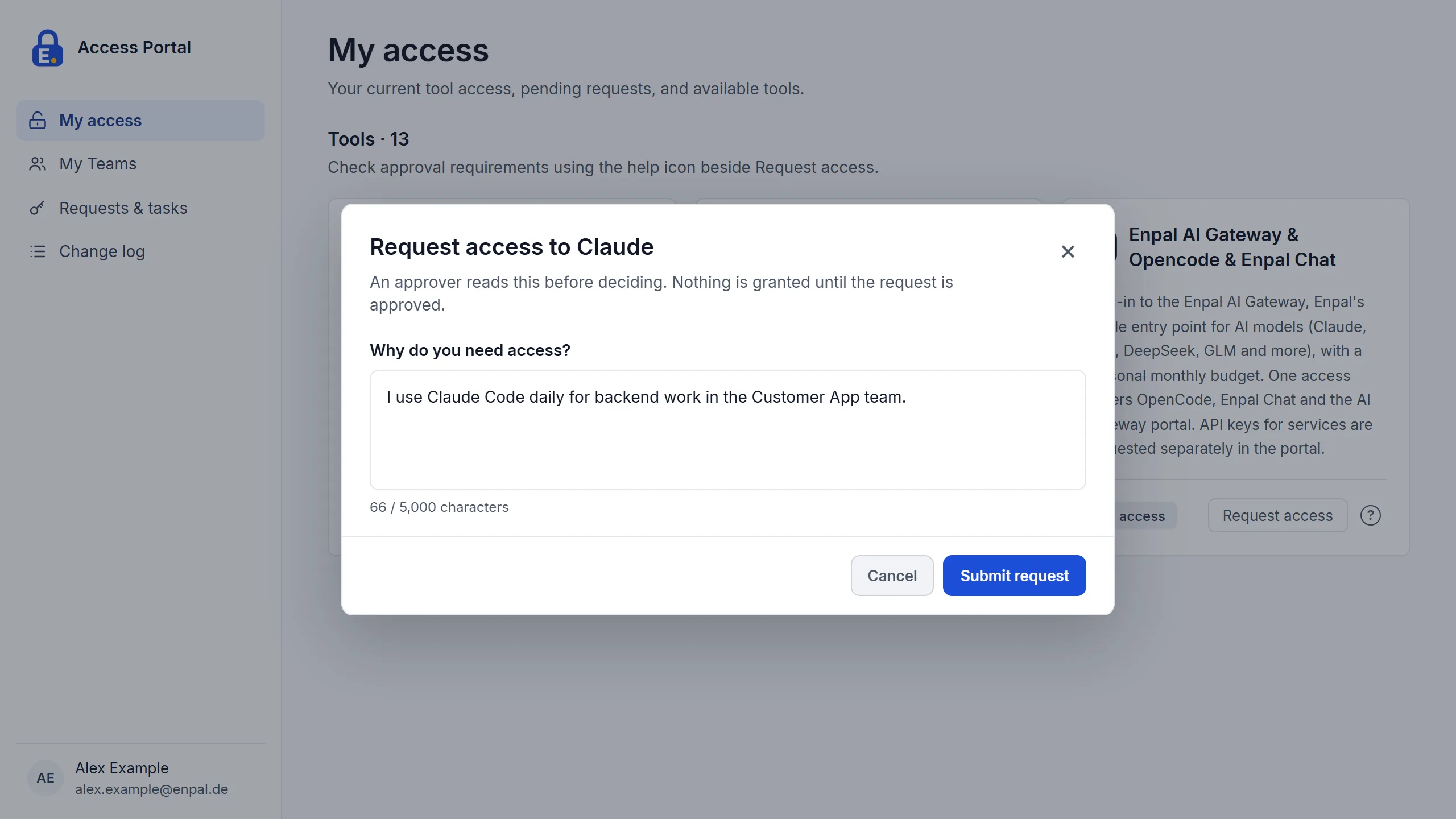
Write a short reason. The approver reads it before deciding.
Your manager gets an email and finds your request on access.enpal.io under Requests & tasks, Needs your action. They click Review, read your reason and click Approve. If it is urgent, let them know it is waiting.
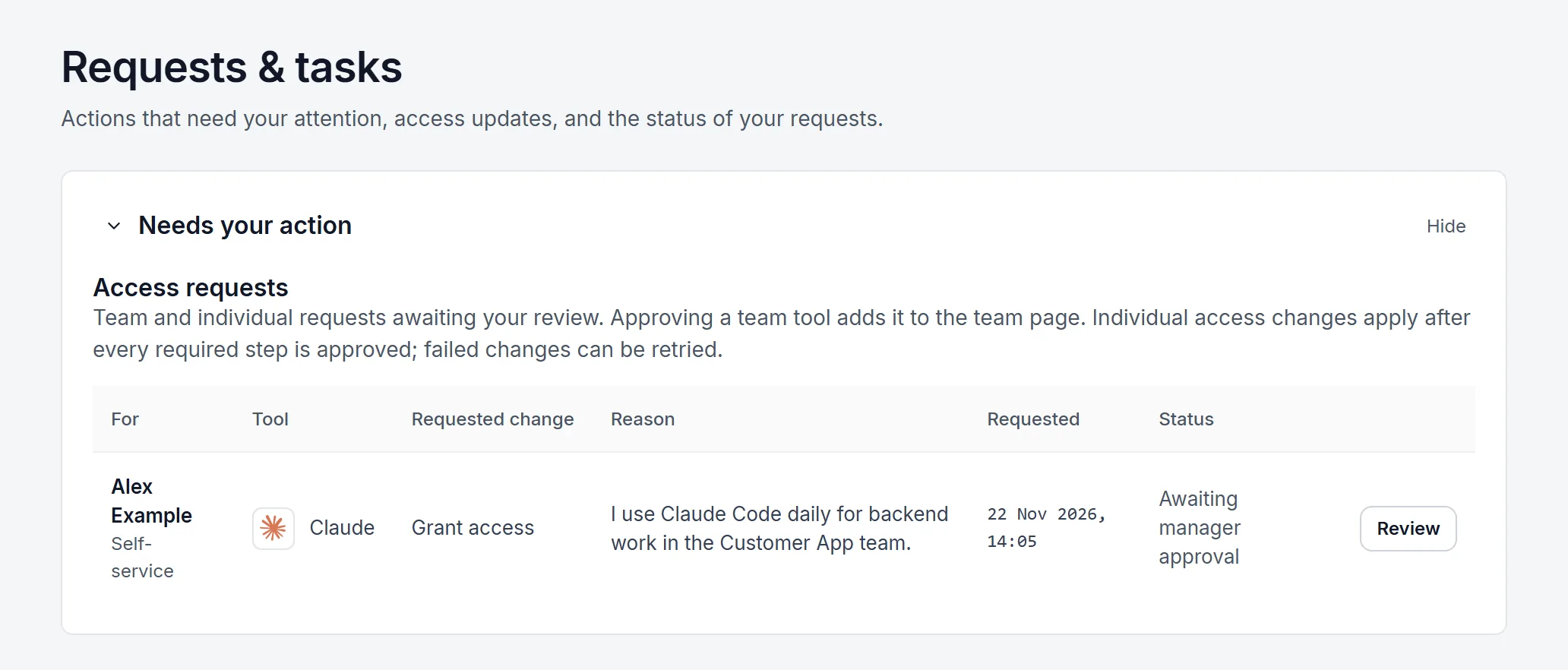
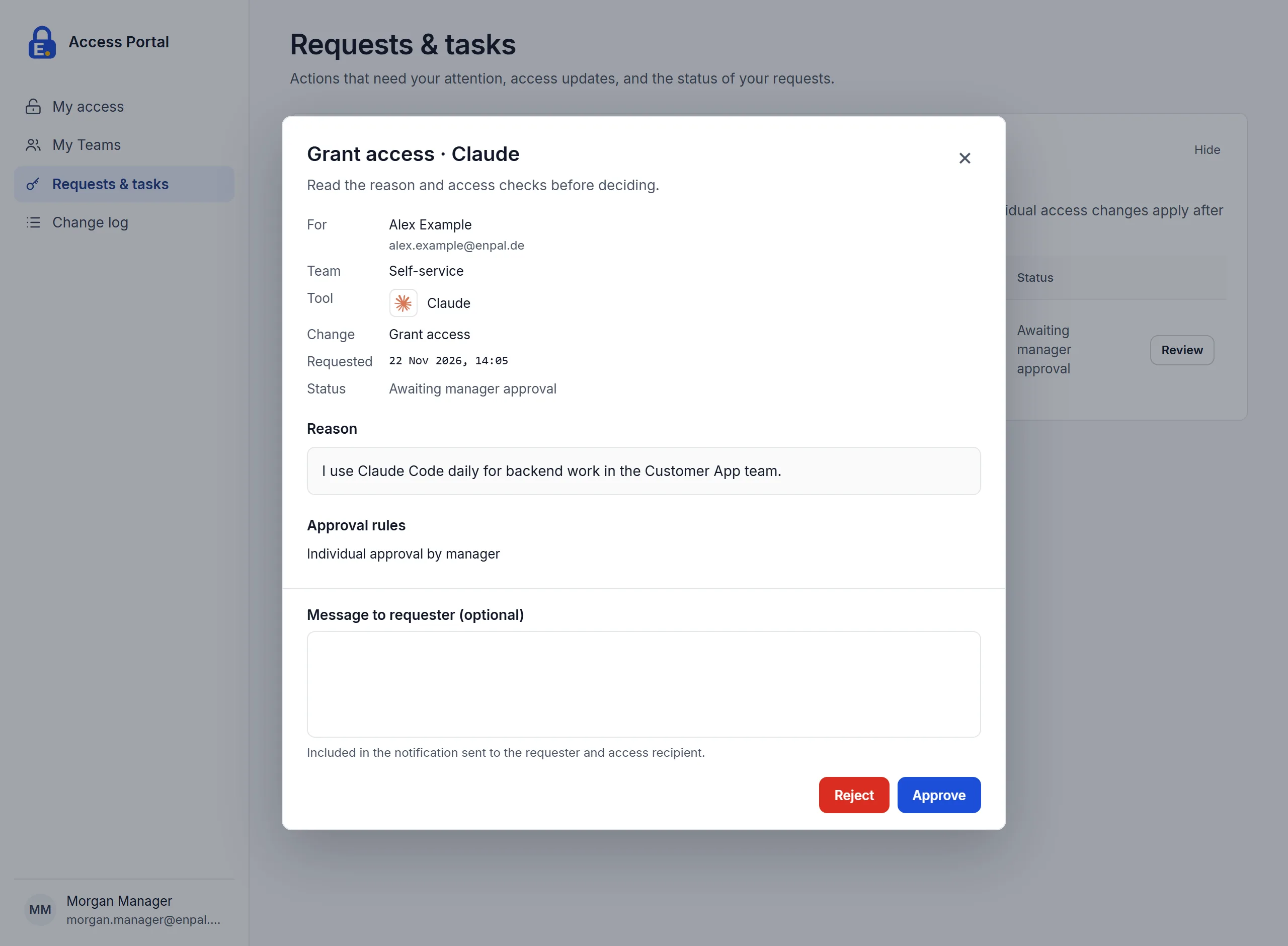
Once your manager approves, a Claude access approver picks your team's Claude group, and you are added to the Claude group and your account is set up for you. Requests & tasks shows where it stands.
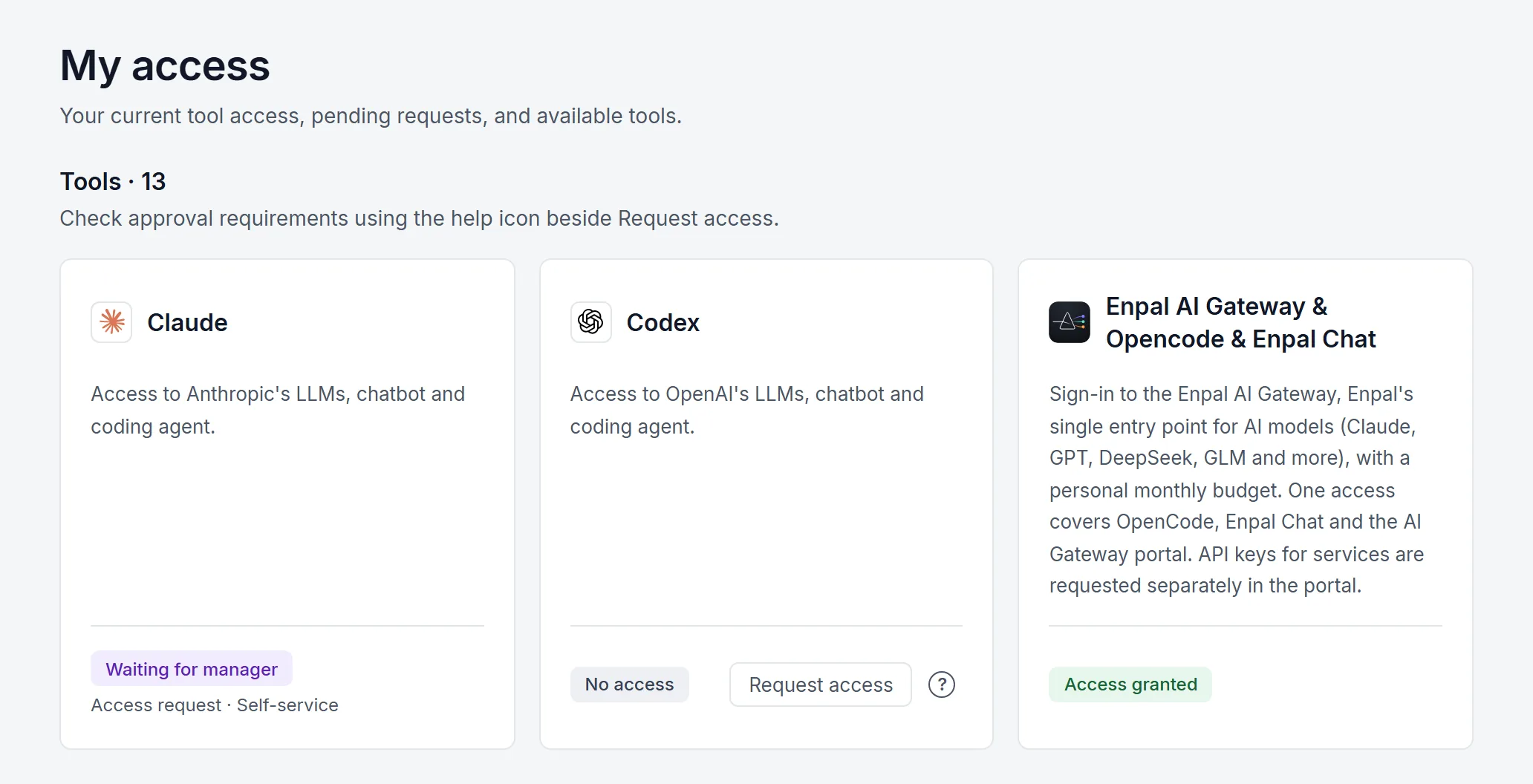
Sample screens: your page lists every tool you can request.
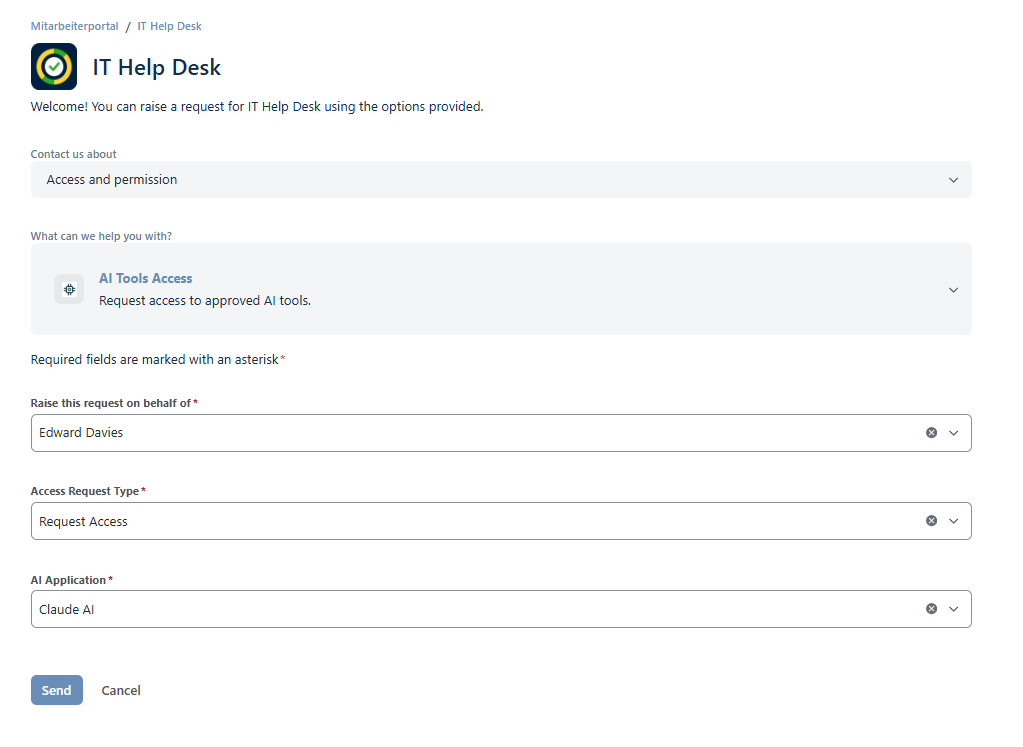
The link opens the IT Help Desk form (Mitarbeiterportal, IT Help Desk). Fill it in like this:
Choose Access and permission.
Choose AI Tools Access ("Request access to approved AI tools").
Leave your own name. It is already filled in.
Choose Request Access.
Choose Claude AI.
Click Send.
Need a higher monthly limit later? You change it here in the portal, see Changing your Claude budget.
Claude
Claude kannst du auf zwei Wegen beantragen: auf access.enpal.io oder mit einem IT-Ticket. In beiden Fällen läuft alles Weitere automatisch, sobald deine Führungskraft zustimmt.
Das Zugangsportal wird das IT-Ticket für Claude ablösen. Du kannst es schon jetzt nutzen.
Öffne access.enpal.io und melde dich mit deinem Enpal-Microsoft-Konto an. Such auf My access die Karte Claude und klicke auf Request access. Das ? daneben zeigt, wer freigibt.
Schreib eine kurze Begründung. Wer freigibt, liest sie vor der Entscheidung.
Deine Führungskraft bekommt eine E-Mail und findet deinen Antrag auf access.enpal.io unter Requests & tasks, Needs your action. Sie klickt auf Review, liest deine Begründung und klickt auf Approve. Wenn es eilt, sag ihr Bescheid.
Nach der Freigabe deiner Führungskraft wählt die Claude-Freigabe die Claude-Gruppe deines Teams, und du wirst der Claude-Gruppe hinzugefügt, und dein Konto wird für dich eingerichtet. Unter Requests & tasks siehst du den Stand.
Beispielbilder: deine Seite zeigt alle Tools, die du beantragen kannst.
Der Link öffnet das Formular im IT Help Desk (Mitarbeiterportal, IT Help Desk). Füll es so aus:
Wähle Access and permission.
Wähle AI Tools Access ("Request access to approved AI tools").
Lass deinen eigenen Namen stehen. Er ist schon eingetragen.
Wähle Request Access.
Wähle Claude AI.
Klicke auf Send.
Brauchst du später ein höheres Monatslimit? Das änderst du hier im Portal, siehe Claude-Budget ändern.
Your Claude account has a monthly spend limit. To change it, send a request in the portal. Your manager approves it, then a portal admin gives the final approval, and the new limit is set in Claude for you.
You need Claude access first. No access yet? Start with Getting Claude access.
In the portal, open My requests and click New request. Choose Claude budget.
The form shows your current monthly limit and what you have spent this month. Use them to decide how much you need.
Click Send to my manager.
Your manager approves on their To approve page. Then a portal admin gives the final approval, for exactly the amount your manager approved. The new limit is then applied in Claude automatically. Either of them can reject the request, always with a note saying why.
Your request is listed in My requests. Click View details to see where it stands. The status tells you who has it now:
| What is happening | Status |
|---|---|
| Your manager has to approve it. | Waiting for manager |
| Your manager approved. A portal admin gives the final approval. | Waiting for admin |
| Approved. The new limit is being set in Claude. | Applying |
| Done. Your new monthly limit is active. | Applied |
| Approved, but setting the limit in Claude did not work. A portal admin retries it, you do not need to do anything. | Apply failed |
| Your manager or an admin said no. Their note says why. | Rejected |
Under History and messages you see every step with its date, and who took it. Below that is a message box: ask a question or add context there. Everyone on the request sees it: you, your manager and the portal admins.
When someone else approves, rejects or writes on your request, a number appears next to My requests in the portal's sidebar, and an updates counter appears at the top of the sidebar. Click the counter for a list of what changed. Opening the request marks it as read. The portal checks for news about once a minute.
Dein Claude-Konto hat ein monatliches Ausgabenlimit. Um es zu ändern, stellst du im Portal einen Antrag. Deine Führungskraft stimmt zu, danach gibt eine Portal-Admin-Person die endgültige Freigabe, und das neue Limit wird für dich in Claude gesetzt.
Du brauchst zuerst Claude-Zugang. Noch keinen? Fang mit Claude-Zugang bekommen an.
Öffne im Portal die Seite My requests und klicke auf New request. Wähle Claude budget.
Das Formular zeigt dein aktuelles Monatslimit und was du diesen Monat ausgegeben hast. Daran siehst du, wie viel du brauchst.
Klicke auf Send to my manager.
Deine Führungskraft stimmt auf ihrer Seite To approve zu. Danach gibt eine Portal-Admin-Person die endgültige Freigabe, für genau den Betrag, den deine Führungskraft freigegeben hat. Das neue Limit wird dann automatisch in Claude gesetzt. Beide können den Antrag ablehnen, immer mit einer Notiz, warum.
Dein Antrag steht unter My requests. Klicke auf View details, um zu sehen, wo er steht. Der Status sagt dir, bei wem er gerade liegt:
| Was gerade passiert | Status |
|---|---|
| Deine Führungskraft muss zustimmen. | Waiting for manager |
| Deine Führungskraft hat zugestimmt. Eine Portal-Admin-Person gibt die endgültige Freigabe. | Waiting for admin |
| Freigegeben. Das neue Limit wird in Claude gesetzt. | Applying |
| Fertig. Dein neues Monatslimit gilt. | Applied |
| Freigegeben, aber das Setzen des Limits in Claude hat nicht geklappt. Eine Portal-Admin-Person versucht es erneut, du musst nichts tun. | Apply failed |
| Deine Führungskraft oder eine Admin-Person hat abgelehnt. Die Notiz sagt, warum. | Rejected |
Unter History and messages siehst du jeden Schritt mit Datum und wer ihn gemacht hat. Darunter ist ein Nachrichtenfeld: stell dort Fragen oder ergänze etwas. Alle, die am Antrag beteiligt sind, sehen es: du, deine Führungskraft und die Portal-Admins.
Wenn jemand anderes deinen Antrag freigibt, ablehnt oder dir schreibt, erscheint in der Seitenleiste des Portals eine Zahl neben My requests, und oben in der Seitenleiste ein Zähler für Neuigkeiten. Ein Klick auf den Zähler zeigt, was sich geändert hat. Sobald du den Antrag öffnest, gilt er als gelesen. Das Portal schaut etwa einmal pro Minute nach Neuigkeiten.
When someone names you as their manager on a Claude budget request, you approve it first. Nothing changes until you do.
In the portal, open To approve in the sidebar. A number next to it shows how many requests wait for you. Waiting for you lists them, Decided keeps the ones you already handled.
Click Review. You see the current and the requested monthly limit, the reason and the cost centre. Questions? Write them in the message box. The requester sees them and can answer there.
Click Approve to approve the amount as requested. You cannot change the amount: if it is not right, reject it and say what would work. To Reject, you must add a note so the requester knows why. After you approve, a portal admin gives the final approval and the limit is set in Claude.
Wenn dich jemand in einem Claude-Budget-Antrag als Führungskraft angibt, stimmst du als Erstes zu. Bis dahin ändert sich nichts.
Öffne im Portal in der Seitenleiste To approve. Eine Zahl daneben zeigt, wie viele Anträge auf dich warten. Waiting for you listet sie auf, unter Decided stehen die, die du schon bearbeitet hast.
Klicke auf Review. Du siehst das aktuelle und das gewünschte Monatslimit, die Begründung und die Kostenstelle. Fragen? Schreib sie ins Nachrichtenfeld. Die antragstellende Person sieht sie und kann dort antworten.
Mit Approve stimmst du dem beantragten Betrag zu. Den Betrag kannst du nicht ändern: passt er nicht, lehne ab und schreib, was passen würde. Für Reject brauchst du eine Notiz, damit die Person weiß, warum. Nach deiner Zustimmung gibt eine Portal-Admin-Person die endgültige Freigabe, und das Limit wird in Claude gesetzt.
Codex
You request Codex on the Enpal access portal. Once an access approver says yes, your ChatGPT Enterprise seat with Codex is set up for you.
Go to access.enpal.io and sign in with your Enpal Microsoft account. On My access, find Codex and click Request access. The ? next to it says who approves.
Write a short reason. The approver reads it before deciding.
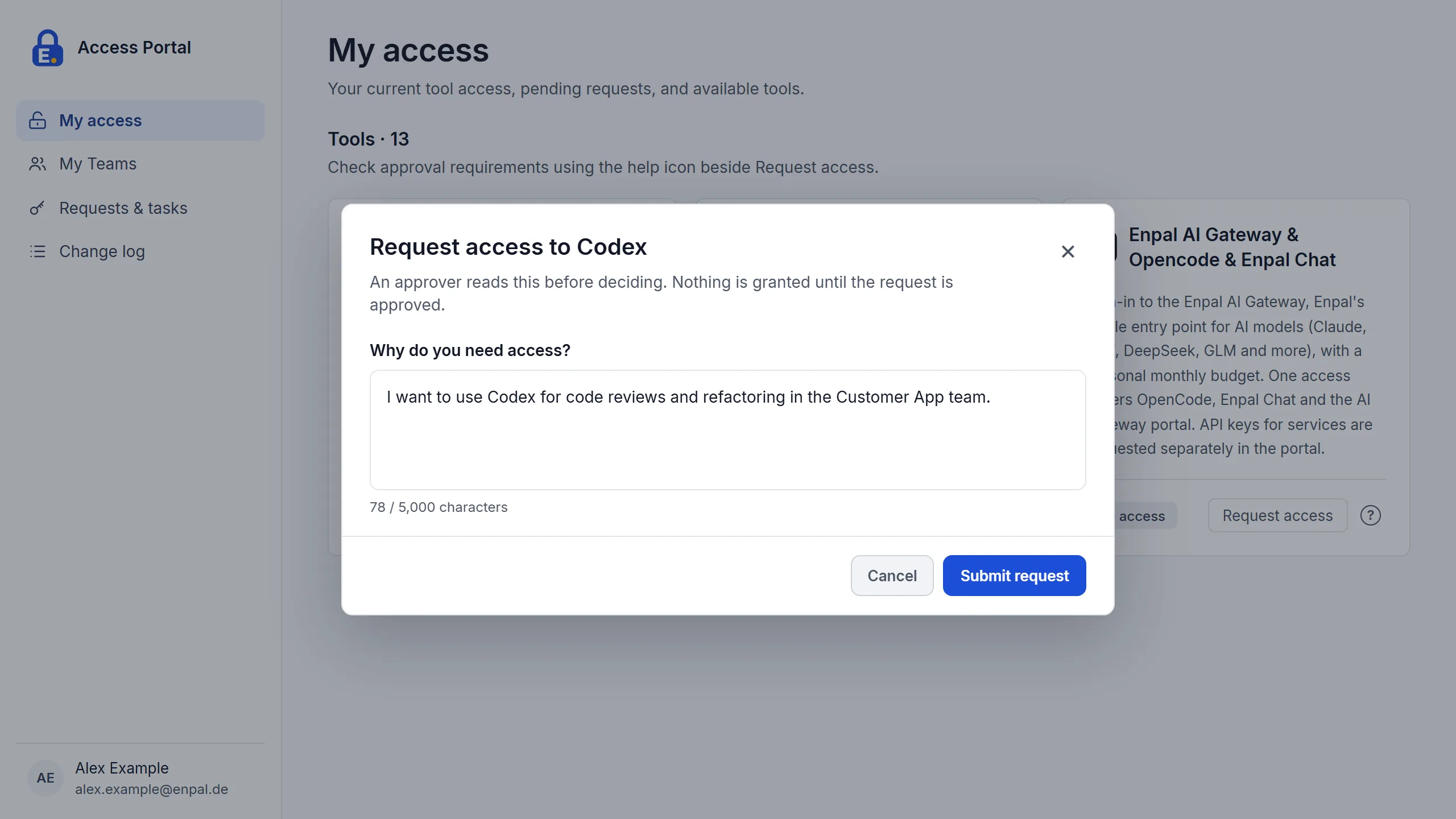
The Codex access approver reviews your request. Once it is approved, you are added to the Codex group and your account is set up for you. Requests & tasks shows where it stands.
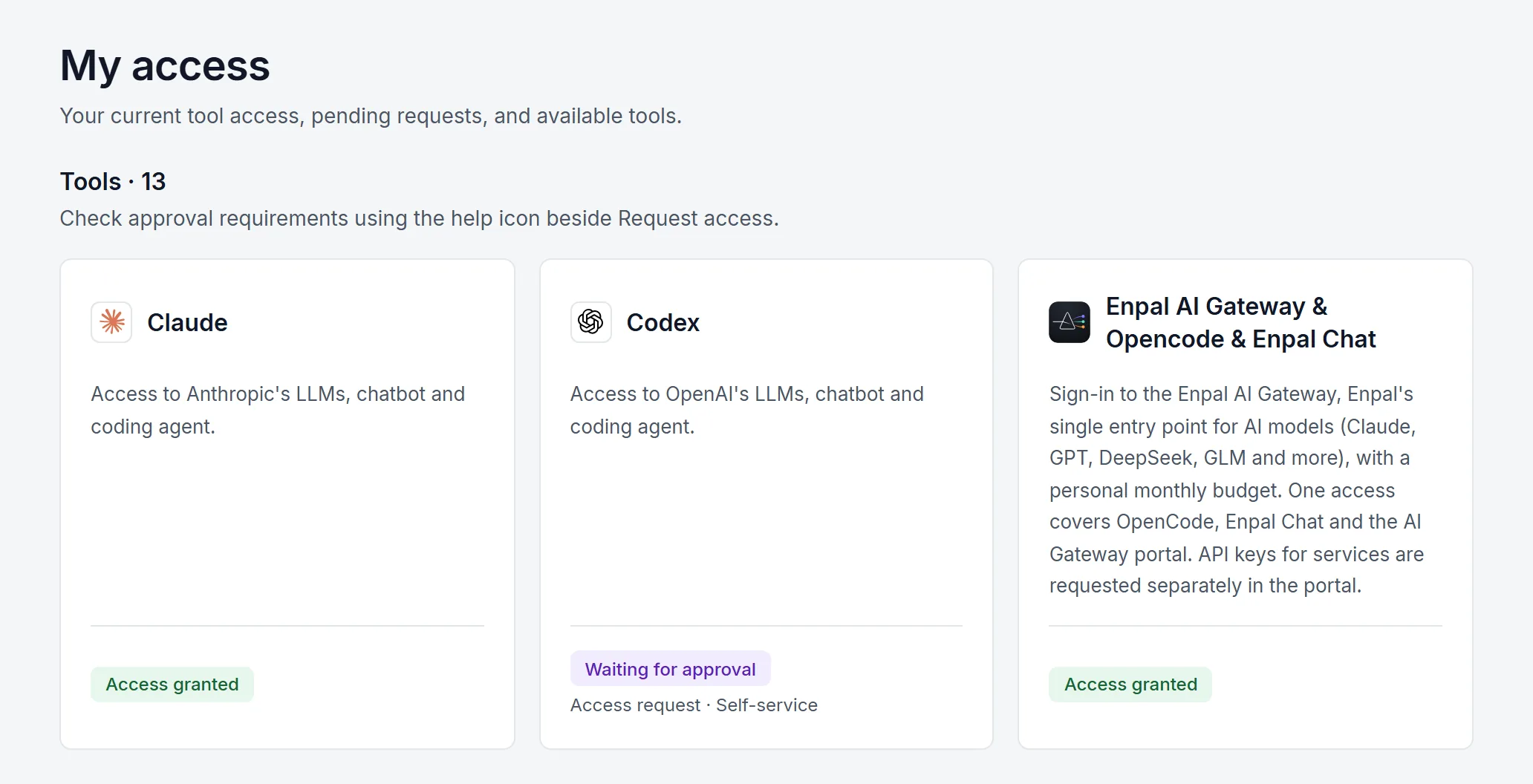
Sample screens: your page lists every tool you can request.
Need a higher monthly limit later? You change it here in the portal, see Changing your Codex budget.
Codex
Codex beantragst du im Enpal-Zugangsportal. Sobald die Freigabe zustimmt, wird dein ChatGPT-Enterprise-Platz mit Codex für dich eingerichtet.
Öffne access.enpal.io und melde dich mit deinem Enpal-Microsoft-Konto an. Such auf My access die Karte Codex und klicke auf Request access. Das ? daneben zeigt, wer freigibt.
Schreib eine kurze Begründung. Wer freigibt, liest sie vor der Entscheidung.
Die Codex-Freigabe prüft deinen Antrag. Nach der Freigabe wirst du der Codex-Gruppe hinzugefügt, und dein Konto wird für dich eingerichtet. Unter Requests & tasks siehst du den Stand.
Beispielbilder: deine Seite zeigt alle Tools, die du beantragen kannst.
Brauchst du später ein höheres Monatslimit? Das änderst du hier im Portal, siehe Codex-Budget ändern.
Your Codex account has a monthly spend limit, in US dollars. To change it, send a request in the portal. Your manager approves it, then a portal admin gives the final approval, and the new limit is set in Codex for you.
You need Codex access first. No access yet? Start with Getting Codex access.
In the portal, open My requests and click New request. Choose Codex budget.
The form shows your current monthly limit, what you have spent this month, and how much of your AI Gateway budget you used. If you have gateway budget left, try OpenCode first: its open-source models cost far less for most coding work.
Click Send to my manager. To nudge them, open the request and click Copy message for your manager: it has a link that opens the request for them.
Your manager approves on their To approve page. Then a portal admin gives the final approval, for exactly the amount your manager approved. The new limit is then applied in Codex automatically. Either of them can reject the request, always with a note saying why.
Your request is listed in My requests. Click View details to see where it stands, and use History and messages to ask a question. The status tells you who has it now:
| What is happening | Status |
|---|---|
| Your manager has to approve it. | Waiting for manager |
| Your manager approved. A portal admin gives the final approval. | Waiting for admin |
| Approved. The new limit is being set in Codex. | Applying |
| Done. Your new monthly limit is active. | Applied |
| Approved, but setting the limit in Codex did not work. A portal admin retries it, you do not need to do anything. | Apply failed |
| Your manager or an admin said no. Their note says why. | Rejected |
When someone else approves, rejects or writes on your request, a number appears next to My requests in the portal's sidebar, and the bell at the top shows what changed. Opening the request marks it as read.
Dein Codex-Konto hat ein monatliches Ausgabenlimit in US-Dollar. Um es zu ändern, stellst du im Portal einen Antrag. Deine Führungskraft stimmt zu, danach gibt eine Portal-Admin-Person die endgültige Freigabe, und das neue Limit wird für dich in Codex gesetzt.
Du brauchst zuerst Codex-Zugang. Noch keinen? Fang mit Codex-Zugang bekommen an.
Öffne im Portal die Seite My requests und klicke auf New request. Wähle Codex budget.
Das Formular zeigt dein aktuelles Monatslimit, was du diesen Monat ausgegeben hast, und wie viel deines AI-Gateway-Budgets du genutzt hast. Hast du noch Gateway-Budget übrig, probier zuerst OpenCode: Seine Open-Source-Modelle kosten für die meiste Programmierarbeit viel weniger.
Klicke auf Send to my manager. Willst du nachhaken, öffne den Antrag und klicke auf Copy message for your manager: Die Nachricht enthält einen Link, der den Antrag für deine Führungskraft öffnet.
Deine Führungskraft stimmt auf ihrer Seite To approve zu. Danach gibt eine Portal-Admin-Person die endgültige Freigabe, für genau den Betrag, den deine Führungskraft freigegeben hat. Das neue Limit wird dann automatisch in Codex gesetzt. Beide können den Antrag ablehnen, immer mit einer Notiz, warum.
Dein Antrag steht unter My requests. Klicke auf View details, um zu sehen, wo er steht, und stell unter History and messages deine Fragen. Der Status sagt dir, bei wem er gerade liegt:
| Was gerade passiert | Status |
|---|---|
| Deine Führungskraft muss zustimmen. | Waiting for manager |
| Deine Führungskraft hat zugestimmt. Eine Portal-Admin-Person gibt die endgültige Freigabe. | Waiting for admin |
| Freigegeben. Das neue Limit wird in Codex gesetzt. | Applying |
| Fertig. Dein neues Monatslimit gilt. | Applied |
| Freigegeben, aber das Setzen des Limits in Codex hat nicht geklappt. Eine Portal-Admin-Person versucht es erneut, du musst nichts tun. | Apply failed |
| Deine Führungskraft oder eine Admin-Person hat abgelehnt. Die Notiz sagt, warum. | Rejected |
Wenn jemand anderes deinen Antrag freigibt, ablehnt oder dir schreibt, erscheint in der Seitenleiste des Portals eine Zahl neben My requests, und die Glocke oben zeigt, was sich geändert hat. Sobald du den Antrag öffnest, gilt er als gelesen.
When someone names you as their manager on a Codex budget request, you approve it first. Nothing changes until you do.
In the portal, open To approve in the sidebar. Codex and Claude requests are listed together, and a number shows how many wait for you.
Click Review. You see the current and the requested monthly limit, the reason, the cost centre, and how much of their AI Gateway budget the person used this month. Questions? Write them in the message box.
Before Approve unlocks, confirm that the cost centre is right, that its owner agreed, and that AI tooling costs are recharged to it every month. You cannot change the amount: if it is not right, reject it and say what would work. To Reject, add a note. After you approve, a portal admin gives the final approval and the limit is set in Codex.
Wenn dich jemand in einem Codex-Budget-Antrag als Führungskraft angibt, stimmst du als Erstes zu. Bis dahin ändert sich nichts.
Öffne im Portal in der Seitenleiste To approve. Codex- und Claude-Anträge stehen dort zusammen, und eine Zahl zeigt, wie viele auf dich warten.
Klicke auf Review. Du siehst das aktuelle und das gewünschte Monatslimit, die Begründung, die Kostenstelle und wie viel ihres AI-Gateway-Budgets die Person diesen Monat genutzt hat. Fragen? Schreib sie ins Nachrichtenfeld.
Bevor Approve freigeschaltet wird, bestätigst du, dass die Kostenstelle stimmt, ihre verantwortliche Person zugestimmt hat und die Kosten für AI-Tools monatlich darauf umgelegt werden. Den Betrag kannst du nicht ändern: passt er nicht, lehne ab und schreib, was passen würde. Für Reject brauchst du eine Notiz. Nach deiner Zustimmung gibt eine Portal-Admin-Person die endgültige Freigabe, und das Limit wird in Codex gesetzt.